
71+ Most common WordPress errors and how to fix them

In these times when the whole business sector has been plunged into a single umbrella named digitization, even the smallest crashes on our eCommerce sites can cause unpredictable losses.WordPress is easily managed, but it can sometimes irritate us with annoying errors. We can call them the leading enemy of the online business world, and they can easily defeat us or have the potential to sink our whole business.
Here, for your help, we have provided a list of common WordPress errors and ways to fix them. You can try the solutions outlined below, but you should inform your Web hosting company if the issue is not resolved.
Be careful..!
Before going into that, one thing is to remind you that the existence of your WordPress site is essential. This is essential to get to where you started. So always ensure that you have a backup of your website before making any changes.
We have listed several WordPress errors to make your job more accessible in the form of a table of contents.
Let’s take a quick look at various errors,
400 Errors
400 errors are client-side errors that occur when the server cannot process a request due to issues from the client’s side, such as an improper request or invalid input.
1. 400 Bad Request
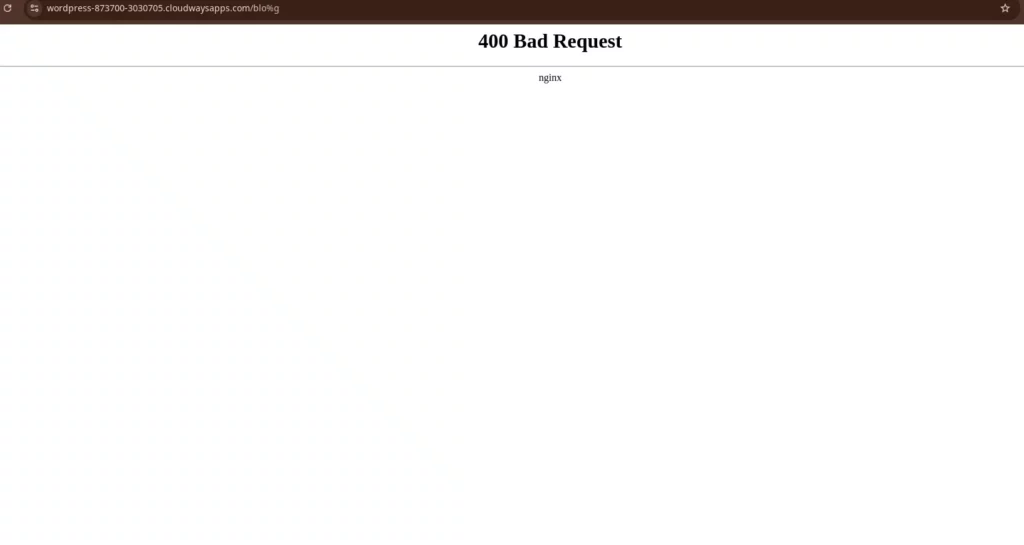
Here the server becomes unable to follow the request or the data stream given by a user. The main reason for this is wrong or improper syntax. This one is considered a most frustrating and challenging error to fix.
This happens for several reasons, such as the client may be uploading a larger file than allowed, an incorrectly-typed URL, using an invalid or expired local cookie, general server errors, differences between DNS data, and local DNS cache, etc.
The possible solutions are correctly checking the URL, Upload Smaller-size Files, Debugging Common Platforms, Log Out and Log In, clearing DNS cache and cookies, deactivating browser extensions, rolling current Upgrades, etc.
2. 403 Forbidden
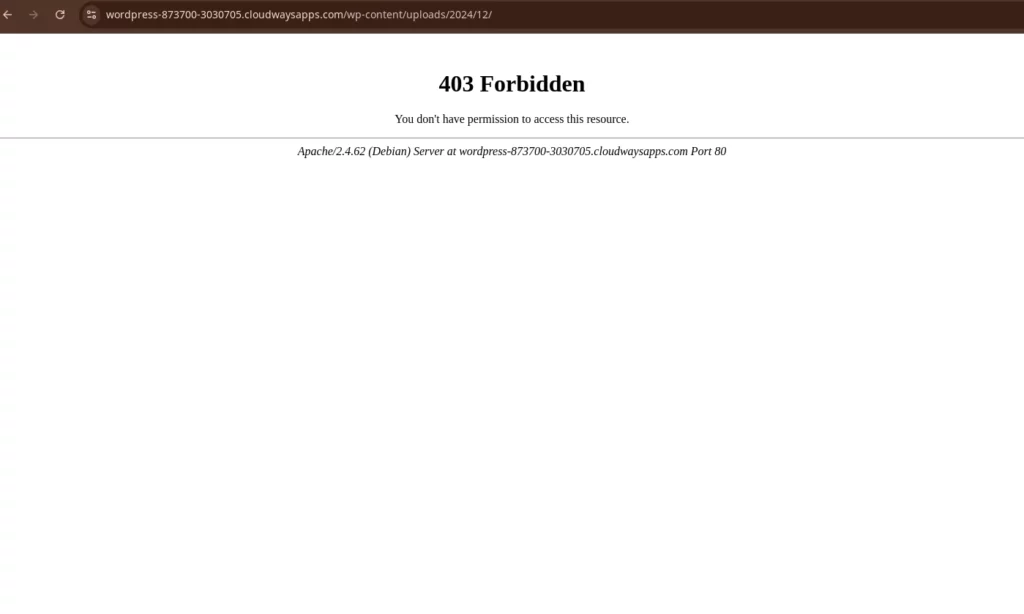
403 Forbidden is the error, which happens the times when the server reads the request but declines to approve it because you are trying to get access into somewhere you should not be permitted
One of the benefits of this is that you can quickly clear doubt with the help of the message displayed on the screen.
The wrong or improper file permissions, server configuration issues, and weakly coded security plugins can be considered the leading causes for this.
This is the way to fix it:
- Deactivate all WP plugins
- Check your file permissions
- Clear browser cache and cookies
- Try to Contact the website directly
- Contact the internet service provider
3. 404 Not Found
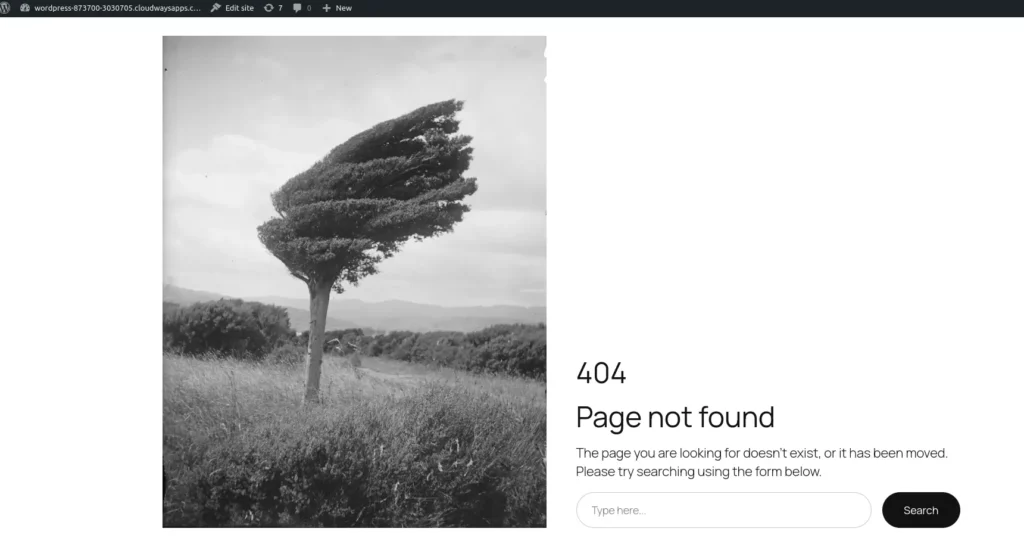
Compared to the other errors, this is a comparatively harmless error used in WordPress. Here, a server can’t respond to requests from a browser, or the server does not wish to disclose whether it has the demanded data.
However, this is a nuisance for you. When the user visits a particular page or post of your site, they will get the message of 404 errors – “Oops! That page can’t be found” This error most probably occurs when the user tries to follow a broken or dead link.
You have to check the URL and ensure it is not broken or dead to fix the issue. Sometimes, you can simply solve this issue by reloading the browser cache and cookies; you can contact the website if not solved.
4. 405 Method Not Allowed

In some aspects, it may be similar to a 404 Error, but this is different from it. In contrast, the server successfully received the browser’s request but refused to follow it for some reason.
Since this is an HTTP response code, it’s not an easy task to track down and fix. This may have occurred for various reasons, like sending a wrong HTTP method and the server expecting only a few correct HTTP methods for the demanded resource.
We can quickly solve this by uninstalling themes, and plugins, rolling new Upgrades, Debugging platforms, confirming the Requested URL’s accuracy, etc.
5. 413 Request Entity Too Large
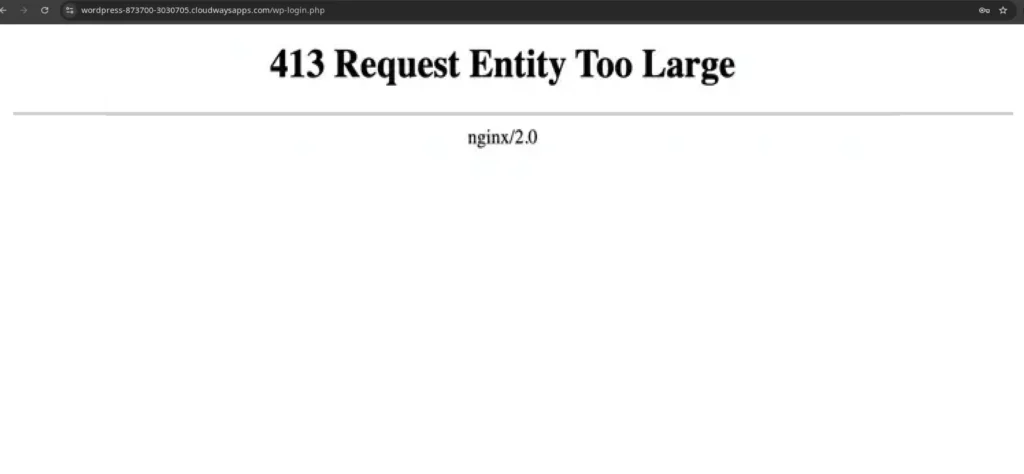
If you confront this mistake, you can ensure that your given request is too large to be accepted or run by the web server because the server is already configured to reject files larger than a particular size.
You have to make the necessary changes to deal with this error. If you want to upload a large file, you have to raise your maximum HTTP request size.
6. 429 Too Many Requests
This error is that the user sent too many requests than allowed in a certain amount of time. Now is the server requesting you to stop sending spamming requests? When this error comes, we will understand the number of granted API requests that have been reached.
This setting is placed on your site as protection against cyber attacks. To fix this, you have to disable the Misbehaving Plugins or extensions of your site, and you can also solve this issue by simply renewing your default login URL.
500 Errors
500 errors occur when something goes wrong on the website’s server, preventing it from fulfilling the request. These errors indicate a general issue without providing specific details about the problem. Common causes include server misconfigurations, permission issues, or temporary server overloads.
7. 500 Internal Server Error

Now let’s be familiar with an error that will spoil a lot of your time and patience, which is not clearly defined and never has an immediate solution. It is named 500 Internal Server Error, which points towards the crackup of your server or file system.
This can happen for several reasons, and there are many ways to remedy this. It can occur due to difficulties in the root directory and the host’s server.
Don’t worry; we are here with the numerous possible solutions:
- Find the error via debugging
- Clearing the browser cache
- Expanding Your PHP Memory Limit
- Disable all plugins
- Switch to default themes
- Reinstall WordPress
- Check file permissions
- Examine your .htaccess file
- Get help from your host
8. 502 Bad Gateway
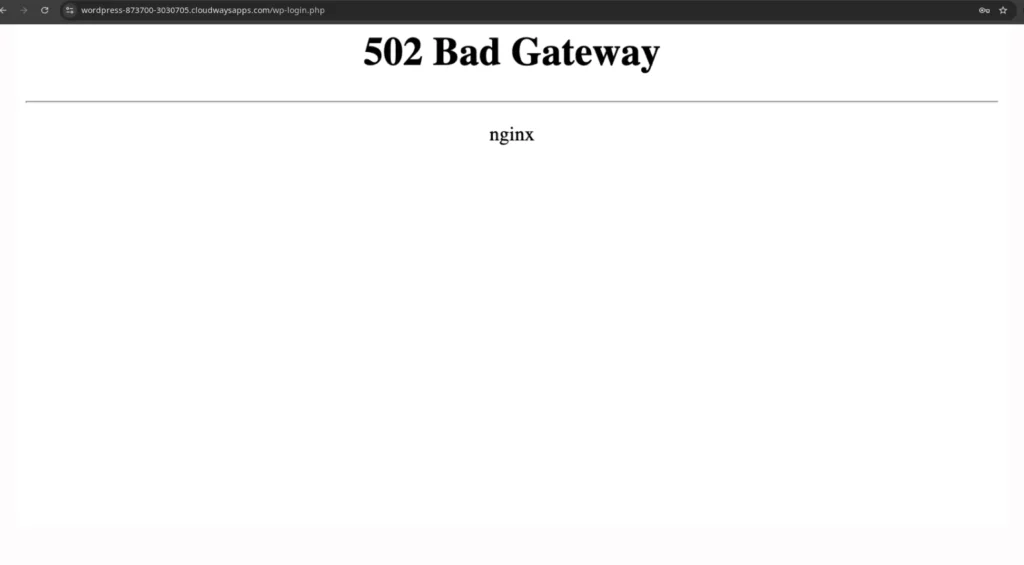
In such situations, your website’s server communication is going through a difficult stage. We can consider it one of the most burdensome errors you have to encounter while trying to enter a website. Either one web server receives an invalid request from some other web server. This error is also known as 502 Service Temporarily Overloaded, HTTP HTTP 502, Error 502 Bad Gateway, Temporary Error (502), 502 Bad Gateway Nginx, etc.
There are plenty of tricks to solve this error, such as:
- Clearing your browser cache
- Reloading the page
- Switch the browser
- Restart Your Device
- Modify your DNS Servers
9. 503 Service Unavailable
This error indicates that your server functions are proper but currently incapable of handling your request, or the server is not available right now. It can be challenging to define the actual reason for a 503 Service Unavailable. It mainly occurs during the server maintenance time; the server becomes too busy and overloaded.
You can fix it in the following ways:
- Refresh the page
- Restart your device
- Uninstall your plugins.
- Deactivate your CDN.
- Enhancing server resources
- Reboot your Server
- Check Server Connectivity Problems
- Check the Logs
- Wrong Firewall Configuration
10. 504 Gateway Timeout

We can simply define this error as a technical issue that happens when web servers aren’t interacting with each other fast enough. It happens because of the clash between an inbound server and a proxy.
Thus, a server tries to load a web page but does not respond in time from another server. This error could happen due to the server issue when the server is confused with requests and scheduling maintenance. Unlike other errors, it will directly affect your SEO ratings.
Possible solutions include reloading or refreshing the page, examining your DNS, temporarily deactivating your CDN, and the active proxy settings. If you still have not resolved your issue as a final solution, you must wait and try again later.
Server Related Errors
Server-related errors usually occur when there is a problem with the server hosting a website or application. These errors restrict users from accessing the site and performing actions. Understanding and troubleshooting these errors is essential for smooth website performance.
11. Memory Limit Error
It is a very common issue faced by most WordPress users. When you install a new extension or theme, which demands a higher server memory limit, you have to face this error. In such cases, the WordPress code requires more memory than the default designated memory.
When it comes to WordPress, has some automatic features to solve the problem of users. Like, it automatically tries to extend the PHP memory limit if it is shorter than 64MB.
The possible solutions are raising the PHP Memory allocated to the Website and Updating your site’s Hosting Plan.
12. Upload_max_filesize Error

When you are seriously trying to upload something to your WordPress site, but you can’t complete the action, you can find this error message.
“The uploaded file exceeds the upload_max_filesize directive in php.ini.”
Mainly this error occurs when you upload something that exceeds the limits set by hosting providers. Most of the hosts used to fix the default as small as just 2 MB or 4 MB.
This error arises from space shortage, so you can quickly solve it by increasing the file size-uploading limit. Therefore, you can enhance your PHP resource limits by tweaking the .htaccess file.
13. Fatal Error: Maximum Execution Time Exceeded
When it comes to PHP scripts, the server sets a proper time limit to run the scripts. Most probably, this time limit should be 30 seconds. In such cases, the hand takes the PHP, stopping or cutting the execution.
This deserves much attention, but you can quickly fix this issue with a few tricks. You can raise this limit by installing the WP Maximum Execution Time Exceeded plugin. Instead, you can also prefer adding configuration to your .htaccess file. As another trick, you have to increase the memory limit to solve this. You can also do this by deactivating Your Current theme and switching to the default one.
14. Upload: Failed to Write File to Disk
Like most cases, this could happen because of incorrect permissions. Sometimes it can also occur when your website overcomes the quota limit of the hosting service.
It may not sound so dangerous, but it is very disgusting. Because when you barely make a file to upload or post, you will see this disturbing message: “Upload Failed to Write File to Disk.”
Here are some effortless remedies:
- Changing the Numeric Value of Folders and files
- Clear the WordPress Temporary Folder
- Renew Your Hosting Plan to get More Disk Space
- Use FTP Client Software
- Check the Quota Limit
- Modify the File Permissions
15. Secure Connection
A secure connection error occurs when the web browser fails to secure a connection with the website’s HTTPS protocol. It usually occurs due to issues with the website’s SSL/TLS certificate or its configuration. You can resolve these issues using the following methods:
- Check and renew your SSL/TLS certificates.
- Enable HTTPS redirections.
- Check for any malware or hacking attempts.
- Verify server configuration
- Contact your hosting provider if the problem is not solved.
Security Related Errors
Security-related errors pose a risk to a website and its data. They often occur from vulnerabilities in WordPress software, plugins, or themes.
16. Cloudflare Error 521
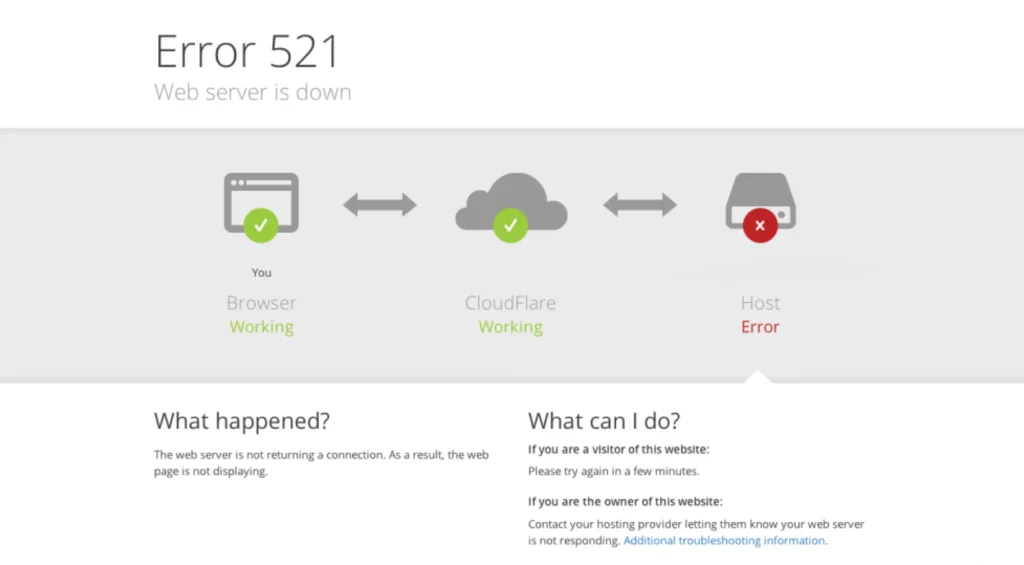
This error is something related to security or firewall software. Cloudflare is a program specially designed to protect our site from DDoS and other attacks. When the working of Cloudflare is not properly, WordPress alerts us in the form of this error.
The possible causes of this error are web server issues; maybe it should be offline, the place leading correctly, leading working, or malfunctioning. Otherwise, it should be due to blocked Cloudflare requests.
To troubleshoot this error, we can take help from cURL or Telnet to determine connection errors. When your server fails to set up a secure connection, you have to clash with such errors. SSL is a standard technology that stands for setting up an encrypted link between a server and a client.
17. Sorry, This File Type Is Not Permitted for Security Reasons
Sometimes when you try to upload a file to WordPress, you’ll see this error. Consequently, you can see this message;
“Sorry, this file type is not permitted for security reasons.”
WordPress is very serious about security matters. This is something closely related to the protection of your site against malicious parties that add executable files to your site. Thus, WordPress will prevent that action when you try to upload a file type, not on that list.
In that case, you can solve this issue by making further amendments to your wp-config.php file. There is also an Extra File Types plugin to fix this error.
18. Sorry, You Are Not Allowed to Access This Page
This is also one of the safety measurements of WordPress. This helps to save your site from hackers and avoid Future Disasters. Nevertheless, it becomes a nuisance when it starts to carelessly block well-meaning users from accessing your site.
To deal with this error, you have to take care of a few things, such as ensuring the exactness of the database prefix, resetting your file permissions via SFTP, verifying your account is designated the correct user role phpMyAdmin, and at last, deactivating all plugins and your active theme.
19. Installation Failed: Could Not Create a Directory
We can also consider this as a file permissions-related error. We can see this message sometimes when trying to update a new version of WordPress or update themes, update WordPress plugins, and so on. This error message indicates that WordPress is helpless to add particular files to the server for some specific reason.
The leading cause of this error is the mistake that happens during installation. To fix this, you need to Clear the browser cache and ensure that you’re approved to Write in wp-admin, wp-content, and wp-includes directories via FTP.
20. ERR_SSL_PROTOCOL_ERROR
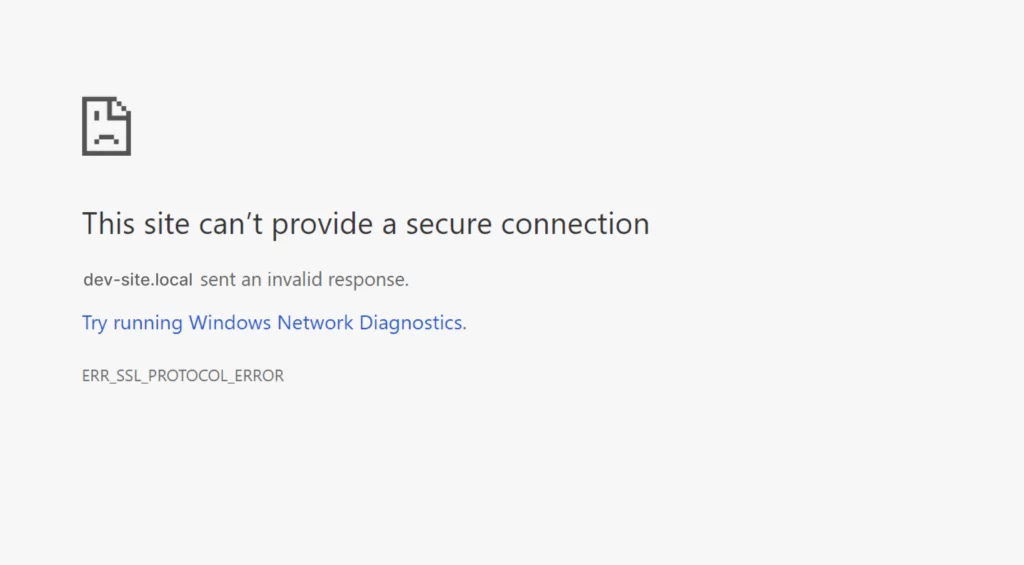
When you install a new SSL certificate switching hosting providers may cause this error. You can easily recognize this error with this error message: ERR_SSL_PROTOCOL_ERROR.
If you are a long-term WordPress user, you can quickly deal with this, but it’s a bit confusing for you if you are a beginner.
You need to verify your SSL certificate, upgrade your browser and operating systems, remove the caches and cookies, and as a final trick, you have to deactivate your browser extensions.
21. ERR_SSL_VERSION_OR_CIPHER_MISMATCH

ERR_SSL_VERSION_OR_CIPHER_MISMATCH, if you see this message in your display, you can be sure your system or device is running with an outdated browser or operating system; otherwise, your SSL certificate may be a corrupted one.
As an initial step, you should find out the actual cause of your error, and you can fix it with a few simple tricks. First, you have to make sure your browser and operating system are using an upgraded version; if not, you should update that. Also, verify the name contradictions of your SSL certificates and ensure it’s an updated one.
22. Mixed Content Error
“Mixed content,” or “insecure content” is a technical error in WordPress sites due to wrong HTTPS / SSL settings. A principal cause of this error is the presence of hardcoded insecure URLs in the databases and files.
We should have been cautious about it unless it badly affects your site’s credibility and SEO rankings. It will cause an info sign or a broken padlock icon in the address bar when it comes to mixed content errors.
With the help of the Inspect Element console, you can examine whether your site is affected by insecure content or not.
If your site is affected, then follow our tricks to resolve it:
- Modify your site’s URL in the Settings
- assure the validity of installed SSL
- Clean the server caches
- use the Insecure Content Fixer plugin
- try in the incognito window
- verify your theme and plugin files
23. File and Folder Permissions Errors
This WordPress facility decides who can read, run, or modify files hosted on your site. Your WordPress hosting company already fixed this.
Due to this error, you have to face many consequences, like being unable to create the folders, failed updates, and unable to create the directory, etc.
You can fix this problem in different ways. You can make some crucial changes in your security plugins to reset File and Folder Permissions as an effortless trick. As a last attempt, you can get help from Web Hosting cPanel.
24. Common SSL errors
Every browser comes with a built-in capacity to authenticate or validate root SSL Certificates. At that time, a browser displayed the error message “The site’s security certificate is not trusted,” which means that a regulated Certificate Authority does not issue the SSL certificates of that site.
When it comes to SSL / HTTPS-SSL / HTTPS-supported sites, they use a unique SSL certificate to verify the certificate’s validity. We can also consider this message as a warning from the most modern browsers.
As a most advanced and easy way to resolve this error, you have to seek help from your WordPress hosting provider and make sure the SSL certificate is installed correctly.
There are some other effective ideas to fix this error:
- Clear Browsing Data and SSL State
- Deactivate Extensions
- Modify Your Internet Security and Privacy Level
- Review the Date of Your System.
- Review Your Antivirus Settings.
25. Site Ahead Contains Harmful Program
The ‘Site Ahead Contains Harmful Program’ error is part of Google’s Safe Browsing feature. It typically appears when the browser detects that a website is unsafe to browse due to the harmful content or malware present on the site. To prevent or resolve this error, consider the following practices:
- Scan Your Website For Malware: Use security tools like Sucuri Site Check, Wordfence, or Google Search Console to identify any malware present in your WordPress website.
- Keep your website updated: Ensure that your CMS (like WordPress) themes, scripts, and plugins are updated, and remove unnecessary and outdated plugins and themes.
- Clean your website: Delete the infected files and restore your site from the backup.
- Request a review from Google: Requesting a review from Google is a process where website owners notify Google that they have resolved issues related to malware or policy violations.
WordPress Media Errors
WordPress media errors occur when you upload, view, or handle media resources, including photos, audio, and videos, on your WordPress website. You might experience WordPress media problems. The media library must fail to load; files and images may not appear as a result of these errors.
26. Add Media Button Isn’t Working
It should be very annoying when you prepare attractive and effective files to post on your site, but at that moment, the WordPress Add Media button cheats you, and you must stop the mission immediately.
Add media buttons play a leading role in the process of WordPress uploading. It is a feature that allows you to upload new media files or post files from your media library.
The most discussed reasons for this error are the conflicts between themes and plugins and the JS script’s confusion.
You have to clear your site by clearing the cache and adding the defined function to your wp-config.php file to fix this error.
27. There Has Been an Error Cropping Your Image.
Images are one of the most influential media files on your WordPress sites. Therefore, we must give much care to the matter. This is something related to the image files in the media library.
WordPress offers tremendous opportunities to make further edits in the image files as per user interests. However, you can’t proceed with the processes like rotations and cropping on your website due to this error. When you try this, you will get this message “There has been an error cropping your image.”
The possible causes of this issue are running an outdated version of PHP and missing the necessary Graphics Draw (GD) package. You have to upgrade your PHP version and install the Graphics Draw (GD) package on your server to correct this error.
28. Facebook Wrong Thumbnail Error
Have you ever had to face the issue of Facebook not showing the correct thumbnail image? Then you are in the right place. We will guide you to fix this issue most effortlessly.
The possible reason for this issue is the conflicts in Open Graph(OG) tags. Other potential problems include caching plugins, CDN issues, and so on.
The main complication is finding out the actual reason because we couldn’t find any error message here. We can quickly get relief from this issue by using Facebook debug tools.
29. Broken Media Library
This error completely spoils our media uploading activities on our WordPress site. You can easily recognize this error. Due to this, whenever you try to upload images to the Media library, it keeps sending you an error message
“An error occurred in the upload. Please try again later.”
Furthermore, all the images from your site are giving split image placeholders. Maybe our little carelessness in the time of WordPress installation caused this error because it resulted from the wrong file and directory permissions at the time of WordPress installation.
To fix this, we have to take care of a few things, such as switching to default themes and disabling all plugins, and exceptions. Finally, you have to remove your browser’s cache and cookies and re-login after some time.
30. Unable to upload images
In such errors, you have to face some troubles in uploading images. There are several causes and various solutions behind this error, but the primary reason behind this issue is the incorrect file permissions.
The worst part about this error is that we can’t predict this error. Hence, we cannot be prepared to face it with backups.
Now let’s discuss how to fix the HTTP image upload error in WordPress:
- Boost your WordPress memory
- Deactivate plugins
- Delete the file path on the Media Settings page
- Reduce the image’s resolution.
- Rename the image.
Database Errors
Database errors happen when an issue interacts with or connects to the database where the important data is stored. The errors may result in problems such as being unable to save or retrieve data, which leads to data losses and application crashes.
31. Error Setting a Database Connection
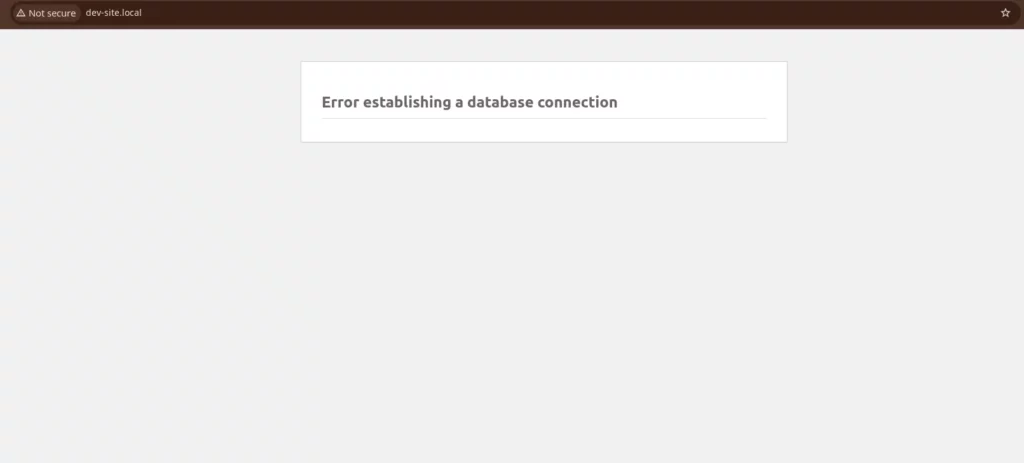
Just imagine suddenly, one day, your users can’t get access to your website, and you can’t set up a connection with your MySQL database. Every time you see this message on the screen, your losses are so high; that it is considered one of the most horrible errors at all.
The reasons for this error are numerous; the most important one is due to wrong login credentials. This may happen when site traffic is higher than the capacity of your server. It also happens due to installing weakly coded plugins.
As a solution, you have to find your wp-config.php file first and make further changes with the “Repair and Optimize Database” option.
32. WordPress Database Is Corrupt
We can consider this as one of the complex errors, which occurs when we use corrupted or incorrect databases and files for your site. You can use the backup of your database to fix this issue by simply restoring and replacing the corrupted one.
If still, the problem remains unsolved, you have to make some alterations in the wp-config.php file. You can also seek the help of the WordPress database plugin effortlessly.
Php Errors
PHP errors normally occur when there is a problem in the script that is preventing the smooth functionality of the web applications.
33. Missing a Temporary Folder Error
When this error occurs, we can sense there is something wrong with the PHP configuration of your website’s server. Consequently, when you try to upload something, WordPress disrupts that, and the telling folder isn’t available because WordPress cannot access that folder.
To fix this error, you have to establish a temporary folder for WordPress to use. To create a new temporary folder, you need to edit the wp-config.php file and easily create a new one. You can also seek help from your WordPress hosting provider.
34. Turn Off PHP Errors in WordPress

PHP warnings are something that acts as both a helping tool and a distraction. They help us fix debugging issues and show that these errors on the front end will make a wrong impression on your site. It’s not a harmful error, unlike other WordPress errors.
Mostly it will appear on the cheaply shared hosts that force displaying PHP warnings and notices.
The only way to fix this issue is to turn them off, and PHP errors will disappear from your site. For this purpose, you have to make further changes to the wp-config.php file.
WordPress File Errors
WordPress file errors prevent you from installing plugins, updating themes, and uploading media files, significantly affecting your website’s functionality. and major reasons for these errors are corrupted files, themes, plugin conflicts, and incorrect file permissions. Understanding these errors is key to maintaining a properly functioning website.
35. Destination Folder Already Exists Error
This is an issue related to plugin and theme installation. WordPress doesn’t accept your plugin or theme’s zip file into a folder named after the file itself.
It is easy to solve issues among WordPress errors. First, you have to find out the theme or plugins that caused the error and uninstall it. When the error occurs, WordPress will eliminate your plugin or theme installations. After resolving this error, you can reinstall them easily.
36. Pluggable.php File Errors
As a WordPress website owner, sometimes you have to go through a pluggable.php file error. You have to encounter this error when the WordPress plugin or a custom code snippet fails to execute the functions in the Pluggable.php file.
This error is not harmful because it allows you to proceed with your work on the site despite the error. However, sometimes it becomes more severe because it will affect access to your site. The comforting thing is that you can quickly fix this by easily excluding or updating the code or disabling the plugin.
37. WordPress Files Are Corrupt
Sometimes you can see a properly working site suddenly become naughty after downloading some files. That simply means the file you installed is a corrupted one. This error is mainly caused by the plugin’s working issues, file corruption, database problems, etc.
This may result from wrong file permissions, PHP version errors, server breakdowns, and many more. We can simply fix this by servicing your database, restoring your WordPress core files, and recovering the site backup.
Browser Errors
Browser errors occur when issues prevent a webpage from loading properly. Common reasons are server-related issues, problems relating to browser settings, or incorrect URLs. It’s important to identify the errors for a smooth browsing experience.
38. “Not Secure” Warning

Have you ever noticed that some sites or pages have a ‘Not Secure’ warning next to the website’s name in the address bar? It points towards issuing a secure connection because that site is not using an SSL certificate.
It is a serious issue, which will affect your site’s credibility, site traffic level, SEO, and conversion rates very badly. You can easily remove this warning by securing your site. You have to install a valid SSL certificate for this purpose.
39. Your Connection is Not a Private Error

Your Connection Is Not Private Error is an error message from your browser. In such cases, the browser blocking you from visiting your site because the SSL certificates cannot be validated indicates that it is not trustworthy.
It is something closely related to the security of your site because it’s necessary to protect data from a server to the browser.
However, there is no need to panic.
You can quickly solve this issue with the following tricks:
- Disable Antivirus Software Temporarily
- Establish an SSL Plugin
- Get a Security Certificate
- Proceed Manually
- Properly set your Computer’s Clock and Date
- Reload the Page
- Remove your Browser Cookies, Cache, and History
- Restart your computer
- Try in Incognito Mode
- Upgrade your Operating system
- Verify your Network connection
40. ERR_CONNECTION_REFUSED
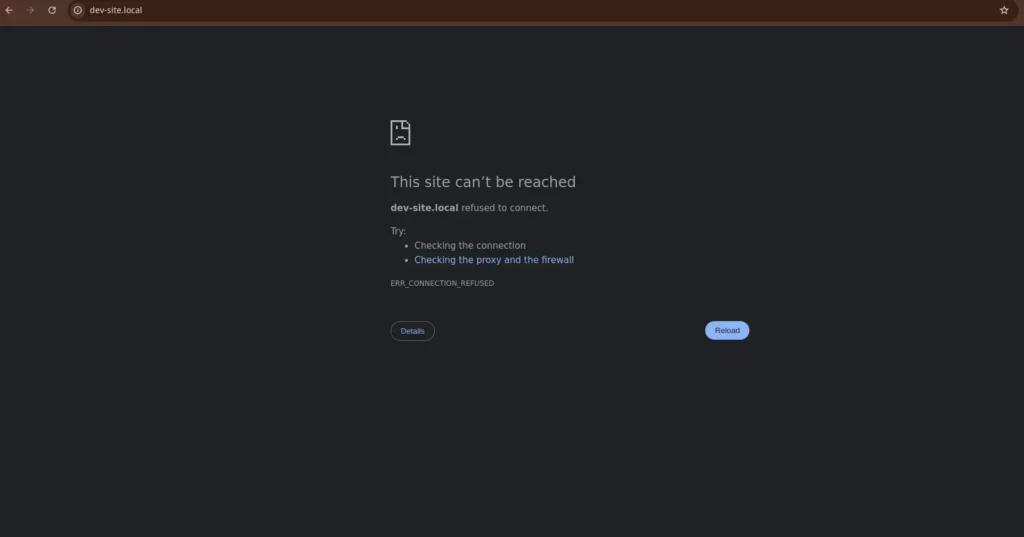
We can count it as a severe WordPress error because users can’t get access to your site due to this error. This causes a lot of losses to your site’s authenticity and income.
You can’t solve it as quickly because it’s an error caused by server problems. Therefore, if your site is down, then you should seek help from your hosting provider. If your users contact you, advise them to clear their system caches and cookies and restart their routers.
41. ERR_EMPTY_RESPONSE
ERR_EMPTY_RESPONSE is an error that occurs due to miscommunication between the browser and server. In this error, the server can’t react to the request from a user’s browser.
It is an easily solvable error you can fix by simply clearing browser caches and resetting specific network settings. You can advise your client to deal with this error by urging them to disable their anti-virus software and remove Chrome extensions temporarily.
Troubleshooting Miscellaneous WordPress Errors
Under the category of troubleshooting miscellaneous WordPress errors, we have mentioned some of the WordPress errors and their solutions that do not fit in the previously mentioned error classifications.
42. White Screen of Death (WSoD)

It should be a disappointing and frustrating experience when you open your WordPress site there, and you have to encounter a White display. As with most other errors, you won’t find any error messages or notices here.
This can be a headache for both Visitors as well as the admins. Plugins and themes are the main offenders of this issue. The issues like incorrect code or memory limit exhaustion.
You can solve this problem by doing the following remedies:
- Disable your WP plugins.
- Use default WP themes
- Turn on Debugging Mode
- Enhance Memory Limit
- Clear Browser Cache
- File Permission Issues
43. Locked Out of Admin Dashboard
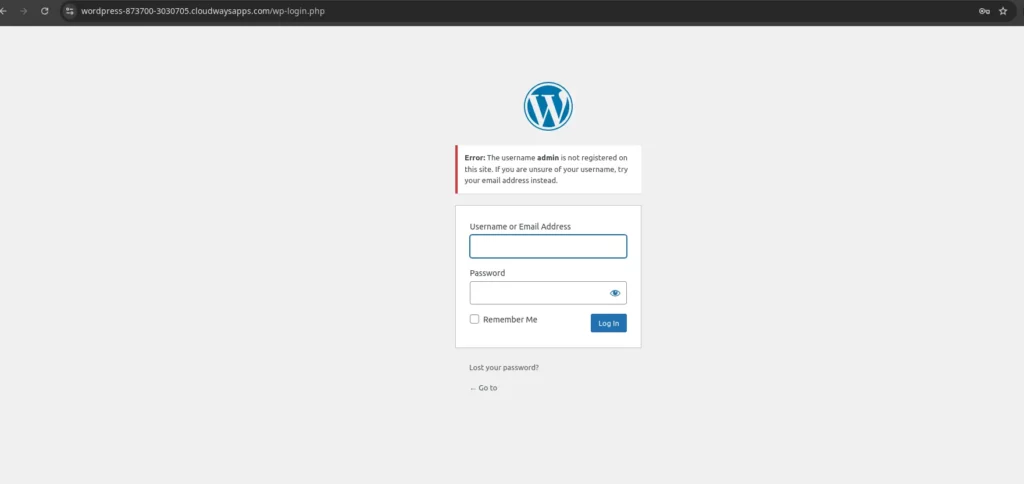
The WordPress dashboard is how you can control and manage various processes regarding your WordPress site. If this error occurs, you no longer get access to your WordPress admin area. In such cases, you are forced to get out of the WordPress admin area.
There are numerous causes for this error. Mostly this could happen when you forget your password and can’t apply for a password recovery email. Sometimes, this is the job done by any hacker, and the wrong interference of a plugin or code can also lock you out of the dashboard.
44. Can’t Connect via SSH or SFTP
SSH or SFTP are the two most valuable things that play a crucial role in the proper working of a WordPress site. SFTP is something that helps you locate your files, and in the case of SSH, it allows a tremendous amount of remote tasks
Due to this error, you can’t connect your server with SFTP or SSH. You can quickly troubleshoot this error by verifying that your host IP address fits the Droplet; the network supports connectivity over the SSH port. Finally, you have to Check the Droplet firewall rules.
45. SSH Connection Refused
When this error occurs, you will get a message “Connection refused” when you try to connect to your server via SSH.
This error can happen for many reasons, such as firewall service downtime, restrictions, wrong SSH port, etc.
When fixing the error, you have to give proper importance to SSH configuration and firewall settings. Moreover, ensure certain things like SSH daemon is installed and the port you’re using is open.
46. Briefly Unavailable for Scheduled Maintenance
We can’t ultimately call it an error, but obviously, it will distract your site visitors. This error usually occurs due to unfinished or interrupted WordPress updates. In case any of the updates get interrupted, WordPress puts your site in maintenance mode permanently.
This is not a simple issue because this error makes your site unavailable for both admins and visitors. To fix this, you have to wait for some minutes because WordPress will automatically fix it.
47. WordPress Maintenance Mode Got Stuck After Update
You have to face this error mostly when the themes or plugins do not upgrade correctly. Hereby, the website may be stuck in maintenance mode, or your WordPress update process has failed.
At this point, when visitors try to get access to your website, they can’t get access to it and will see a pop-up with a message regarding currently working on it. If this continues, it could be trouble for your site’s visitors.
You can easily troubleshoot this issue via certain tricks:
Assure the Compatibility of plugins and themes.
- Never update more than one plugin at the same time
- Use a file manager
- Use an SSH connection
- You can easily get rid of this error
48. Changes Aren’t Visible on Your Live WP Site
Have you ever experienced a situation where you make any significant changes in your WordPress site, but once you log off from the site, you will realize that changes are not affected on the live site? That time when you understand how much time and effort you wasted is so disappointing.
However, because this error occurs due to caches, you can relax because you can fix this with a few steps as soon as possible. As an initial step, you have to deal with caches and cookies. You can also complete this action with the help of a caching plugin.
49. Missed Scheduled Post-Error
Just imagine a situation in which none of the posts you scheduled to publish for your site hasn’t reached their proper destination.
In this error, when you schedule a post to publish at a particular time, WordPress fails to execute this action, and you will get this error message ‘Missed Schedule Error.’
We can find plenty of reasons behind this issue. Most likely, it should be due to a crashed cron job. You can quickly resolve this issue using the following plugins:
- WP Control plugin: The WP Control plugin controls and manages your WordPress website’s scheduled tasks (cron jobs). It allows you to view, edit, delete, or create new tasks.
- Cron job scheduler plugin: A cron job scheduler plugin manages the automated tasks on your website, such as deleting old data, sending email notifications, or publishing posts, and plays a key role in keeping your site efficient and updated.
- WP Missed Schedule plugin: The WP Missed Schedule plugin automatically identifies and publishes posts that were not published on time due to WordPress server or technical issues, ensuring your posts are published on time.
50. Failed to Auto-Update
Updating your site with the help of admin is not that difficult, but WordPress offers such a great and effortless feature of automating the up-gradation of WordPress core, plugins, and themes.
However, what if a feature fails suddenly? Yes, that is a Failed to Auto-Update error.
Herewith WordPress stops the feature of auto-update. It will increase your burden and cause a lot of mess. The possible solutions include turning off the safe mode and Verify file permissions.
51. Import Errors
WordPress offers an excellent future for importing content among WordPress sites. This can be a usual thing among developers. In most cases, they use plugins for this purpose.
Mostly WordPress allows XML files of up to 7MB. But sometimes, even when using less than 7 MB, the activity still fails. PHP or HTTP timeouts are the major causes behind this issue.
You can fix this issue with the help of WP-CLI. Moreover, you can also use remedies like Raising the PHP timeout limit and establishing a faster internet connection.
52. Not Sending Email Errors
When it comes to WP sites, emails play the most crucial role. It acts as the main tool to increase your site traffic and conversion rates.
Because when this error happens, your contact forms stop sending notification emails. That’s why we have to fix email delivery issues and find a fast and easy solution. There are several plugins used for sending emails to your users.
To resolve this issue, you have to find out the actual reason behind the error. If it is a server-related issue, contact your host. If it is due to a plugin issue, then your developer can help you.
53. Parse Error or Syntax Error

Parse Error- syntax error, unexpected $end in /public_html/site1/wp-content/themes/my-theme/functions.php on line 278
If you see something like this on your screen, you can be sure that your PHP parser cannot read the code and stops working. Most probably, this may happen because of forgotten quotation marks, forgetting semicolons, parenthesis, and extra characters.
To resolve this issue, you have to make necessary changes in syntax and correct the mistakes. You can also do this with the help of an editor. You can also use an editor that automatically enters the closing characters or highlights errors in the code for you.
54. WordPress Sidebar Below Content
It should be very disturbing when you are seriously working on your WordPress site, and suddenly your sidebar arrives beneath your content where it shouldn’t be.
It is the most common error, which often happens due to an incorrect tag in any blog post or page. This error probably occurs when you are getting a custom WordPress theme or customizing the existing one.
We can get rid of this error by deactivating the extensions that cause problems and ensuring the Div files are correctly closed.
55. White Text and Missing Buttons of WordPress Visual Editor
White text and missing buttons are some of the leading errors in which WordPress’s visual editor fails at performing various operations. The text color is turned white, and you will lose the necessary buttons of your editor and its contents.
The well-known causes for this error are JavaScript issues or potentially a browser’s caching problem.
This may be due to some minor disorder, which you can repair quickly. Such as:
- Adjust the wp-config file.
- Clean the browser cache.
- Disable all plugins.
- Rearrange your TinyMCE folder.
56. RSS Feed Errors
This can happen for a lot of reasons, but the main reason is the formatting issue of RSS feeds. We can simply define it as a list of the posts you create in WordPress. Moreover, we can use it as the most powerful marketing device. Thus, the eCommerce site owner must give proper importance to this.
This is not as simple as it listens, sometimes it will crop up and block you from using this system. We can solve it by fixing My Feed RSS Repair, selecting the code errors manually, and synchronizing the RSS feeds list between Outlook and Windows.
57. Failed to Open Stream Error
Have you ever experienced it when you tried hard to load your WordPress site, but you couldn’t process the action? This is due to an error occurring in WordPress named Failed to Open Stream Error.
Sometimes it may occur in the errors of a plugin or theme file. This means the plugin or theme files are deleted or not installed correctly.
Hereby you have to find out and respond to errors quickly and effectively.
- Assure your accessibility
- Check your included path
- Double-check that the file path is correct
- Review the file path for typos
- Verify PHP settings
58. Password Reset Key Error
Due to this error, you aren’t able to reset the password of your WordPress site. This error makes the login page keep refreshing; as a result, you can’t save the password reset key. In these times, your WordPress site becomes incapable of adding new data to the WordPress database.
This error is an aftereffect of using the disk space more than allotted to your WordPress hosting account. Due to space limitations, WordPress becomes helpless to add new data to the database. This can be easily solved by deleting unnecessary website files and allowing disc space to add further data.
59. Login Page Keeps Refreshing
Login Page Keeps Refreshing is one of the most critical issues every WordPress user has to go through. Hereby the login page remains refreshing and redirects it back to the login screen.
In most cases, it will happen when using incorrect values in the site URL and home URL fields. Moreover, defectively configuring the .htaccess file is also one of the other reasons.
To fix this error, as a major trick, you have to regenerate your .htaccess file and Verify your site URL. Then you have to focus on clearing your browser cookies and cache, disabling problematic plugins, and enabling your default theme.
60. Keeps Logging Out Problem
As a WordPress site owner, you have to face this error at least once in your lifetime. When you are busy with your updates in the dashboard, you suddenly automatically get logged out from your site and see a message: “Your session has expired.” Then again, you try to log in, and the same thing repeats each time.
Most probably, it could be considered as a plugin or theme conflict. Thus, you have to disable all plugins and use one of the default themes. Sometimes it can also happen because of incorrect WordPress URL settings. Let’s solve this error in the following ways:
- Clear Your Browser’s Cache and Cookies.
- Check Your WordPress Site Address.
- Impair and Re-Enable WordPress Plugins.
- Review Your Browser’s Settings.
- Unload Your WordPress Site’s Cache.
61. Another Update in Process Error
We can consider this as both an error message and a safety message because WordPress uses this error message as a warning to protect the integrity of your site.
This is one of the standard error messages a WordPress site owner has to endure when they try to initiate another update in the background of the WordPress core update. It is an automatic lock that should automatically go away.
When it keeps occurring, you can manually remove the lock with the help of the Another Update in Progress plugin.
62. Error Moving to Trash
WordPress lets you quickly move posts and pages to the trash within seconds and keeps it an impeccable site. But sometimes, when you try to delete posts or pages, you will get the message Error: Can’t move to the trash.
The caching issue or problematic plugins are two prominent causes of this error. You can quickly repair this by fixing the database, verifying the permissions, deleting unsettled plugins, WordPress updates, and Clear cache and cookies.
When this error happens, your WordPress site cannot load a file that it is meant to load. We can consider this error as a browser’s Inspect tool. Through this, you can ensure the presence of the various files on your website.
Thus, you have to make sure that the file exists on your website. For plugins or themes, you can easily reinstall the plugin or theme and fix the error. If this is still unsolved, you have to review your WordPress URLs and ensure their accuracy.
63. Installation Errors
Installing WordPress is a process considered as a straightforward process that takes less than five minutes. It’s easy to install a platform although, sometimes it will disappoint you when you try to install WordPress core, plugins or extensions, and themes.
The result of this error is unfinished installations with messages like “Error Establishing a Database Connection” 500 “Internal Server Errors” and”Headers Already Sent.”
The leading causes are unnecessary spaces or PHP tags in your code. It can quickly solve this with the help of that error message, through that, you can catch the actual problem, and you can solve it by editing the relevant file.
64. This Site is Experiencing Technical Difficulties
In this case, most probably, the error is the result of a plugin or theme dispute. When you are updating your site theme or plugin, suddenly your site is completely shut off, and then you can only see this message on the screen.
This sounds very confusing, but it is one of the easiest to solve. After showing this message, WordPress sends an email to help fix that particular issue. There is one thing to specially take care of here, please ensure your WordPress admin email address is correct.
65. Website is Down
We can consider it one of the most damaging errors because it will badly affect your site traffic and revenue.
This is an error message and also a warning message. This is an inbuilt feature of WordPress sites for the stability of sites. Here WordPress recognizes when a plugin or theme creates fatal errors on your site. As a result, you get this error message and automated email.
So, you have to find the actual cause of your error or if your server is experiencing difficulty. If you can access your Dashboard, you have to reset all plugins, clear the site cookies and caches, and use the default theme.
66. Connection Timed Out Error

This error happens when you overburden a shared server or when crossing the limit that your server can manage. The main reasons for this issue are large plugins, drained PHP memory limit, and theme issues.
The possible remedies to fix this issue include raising the memory limit of PHP in wp-config.php, boosting the maximum execution time, switching to the default theme, and disabling all plugins or extensions.
67. Forgot Admin Password
Once you try to log into your WordPress website dashboard, you are helpless to complete this action. You will never see a worse day than this, in which you are locked out from your site.
When you are trying to recover that lost password from WordPress, it could have been marked as spam, and you will receive an error message: “Could not save password reset key to database.”
The possible reason is that maybe you have consumed the entire amount of disk space allotted to your hosting account. It’s not that difficult to fix this issue. You can simply resolve this by deleting some unnecessary files from your site.
68. Unable to Access the Admin Area
For performing some serious up-gradation, you tried to log in to your WordPress admin dashboard, but you couldn’t even get access to your dashboard. Suddenly you will become scared.
This issue mostly happens due to some harmful cookies and when the password reset option becomes inactive. You can fix this in the following ways:
- Clear Cache
- Disable plugins
- Deactivate your current theme
- Disable the .htaccess file and create a new one
- Update your site URL.
69. Googlebot cannot access CSS and JS files Error
We can consider this as a disturbing error encountered by Google systems. In this error, when you are trying to open your WordPress-powered site or blog on Google, you will get a warning from the Google Search Console team saying,
“Googlebot cannot access CSS and JS files on http://www.yourdomain.com/”?
Thus, as the first step, we have to learn why you got this warning. Mainly this error happens because of restrictions in your robots.txt file or .htaccess file.
Therefore, you have to ensure the free flow of static resources. With the help of the SEO plugin, you can edit your robots.txt and .htaccess files from your dashboard.
70. Fix Common Image Issues in WP
WordPress comes with a wide variety of features to insert and manipulate graphics and photography effortlessly. Those who are well aware of these techniques don’t have to face such kinds of issues, but when it comes to the beginners who are not well aware of WordPress stuff have to go through a lot of troubles. The image uploading issue is one of those kinds of problems.
We may or may not consider this as an error. To avoid this issue, you have to familiarize yourself with WordPress media tools.
The most familiar cause behind this error is conflicts among your themes and plugins. So, disable all your plugins and extensions to resolve it. Furthermore, switch to your default theme.
71. The Link You Followed Expired
WordPress hosting providers already set a lot of settings or restrictions for the smooth working of your site. You have to suffer this error when you break those restrictions regarding the file size limit and uploading time limits.
The hosting companies of your WordPress companies already set that limitation. That’s why when you choose a heavier file than the limit or take longer to upload WordPress warns you with the message, “The link you followed has expired.”
First, you need to find out the actual problem of your site; maybe it is due to size issues or time issues. You can simply fix it by raising the maximum upload size and execution times for your website. In addition, you have to make further edits to the core WordPress file and copy a few lines of code.
72. WordPress Website is Not Updating Right Away Error
“WordPress website not updating right away” is such a pathetic situation in which changes you have made to your site have not been coming to results. If your site is encountering this error, then it does not respond to updates as expected.
The main difficulties of this error are WordPress Plugins not getting updated, Homepage not getting upgraded, WordPress Content / CSS changes not updating, etc.
The main cause of this issue is that you are viewing a cached version. To fix this error, you can use the following plugins.
- W3 Total Cache Plugin: W3 Total Cache Plugin is used to improve the performance and speed of your website by removing cache, reducing the loading time, improving search engine rankings, and contributing to the website’s user experience.
- WP Fastest Cache plugin: WP Fastest Cache plugin speeds up your website by serving static files from your website content, improving site performance, and reducing page load times. Additionally, clearing the cache ensures that visitors are seeing the updated version of your site.
- Breeze – WordPress Cache Plugin: Breeze WordPress caching is a free and user-friendly plugin that offers various features like database clean-up, minification, file-level cache, and built-in Varnish support. The varnish support clears the cache, ensuring that visitors are seeing updated pages rather than outdated pages.
73. Failed to Load Resource
When this error happens, your WordPress site cannot load a file that it is meant to load. We can consider this error as a browser’s Inspect tool. Through this, you can ensure the presence of the various files on your website.
Here the main advantage is that the browser will add a warning as an error treatment for debugging purposes. So, you have to make sure that the file exists on your website.
If this happens in plugins or themes, you can easily reinstall the plugin or theme and fix the error. If this is still unsolved, you have to review your WordPress URLs and ensure their accuracy.
Conclusion
WordPress is a powerful CMS, but like any platform, it’s not immune to errors. Many of the most common WordPress errors can be resolved with the right knowledge and proactive maintenance. Simple practices like regularly backing up your site, updating themes and plugins, and monitoring your website’s performance can save you from most headaches.
However, when issues become too complex or time-consuming, turning to an experienced WordPress service provider is the smartest choice. Don’t let errors hold your website back—get in touch with our experts today for reliable solutions and optimal website performance!
FAQ
What is a WordPress error?

A WordPress error occurs when a malfunction or issue keeps your website from working properly. Common causes of errors include outdated themes, incompatible plugins, server issues, or coding conflicts. Some of the common errors are the white screen of death, errors establishing a database connection, and 404 not found. To fix these issues and restore site functionality, it’s necessary to update plugins and themes and verify server settings.
What is a critical error on WordPress?
A critical error on WordPress means that your website encounters a critical issue that prevents it from functioning properly. Issues such as incompatible plugins, theme conflicts, or database problems could cause this. Typically, WordPress will display a notice message saying, “There has been a critical error on this website,” indicating a serious issue that needs attention. To troubleshoot, you may need to switch themes, disable plugins, or check server settings.
How to protect a WordPress website?
- Update WordPress, plugins, and themes to avoid security issues.
- Make sure all users have strong passwords and two-factor authentication.
- Utilize security plugins such as Sucuri or Wordfence for monitoring and blocking threats.
- Use SSL encryption for securely transmitting data.
- Change the default login URL to restrict the number of login attempts.
- Backup your site regularly to ensure data recovery in case of issues.
- Choose a secure hosting provider with a strong firewall and malware protection.
By incorporating these preventive measures, you can improve your website security and reduce the possibility of attacks.
How to back up a WordPress site?
Backing up a WordPress site is essential as it creates a secure copy of the whole website, including files and databases, that can be restored in case of unanticipated problems such as server failures, hacking, or unintentional data loss. Following are some of the methods to back up your WordPress website.
Use a backup plugin
Use plugins such as BackupBuddy, BlogVault, Duplicator, or UpdraftPlus for regular backups.
Manual backup using cPanel
Utilize File Manager or FTP to download website files through your hosting’s cPanel and use PhpMyAdmin to export the database.
Use hosting backup features
Check if automated backups are available in your hosting plan, as some of the managed WordPress hosting providers allow one-click backup and restore options.
For maximum security, make sure backups are constantly tested and kept in several locations.

Leave a Reply
Articles
Related Insights.
Blogs and Resources on WordPress, WooCommerce, SEO and Marketing
Leave a
Comment.