
Table of Contents
What Is Caching and Why Does WordPress Need It?
The three Layers of WordPress Caching
Page Caching: The Static Snapshot
Object Caching: The Database Buffer
CDN Caching: Serving The World From The Edge
The Variable Most Guides Skip: Your Hosting Environment
Quick Reference: The Three Caching Layers
WordPress Caching Explained: Page, Object & CDN Caching (and the Plugins That Do It)

What Is Caching and Why Does WordPress Need It?
Caching is the process of storing a copy of data so it can be served faster the next time it’s requested, instead of being generated from scratch. Think of it like a shortcut: rather than repeating expensive work every time, the result of that work is saved and reused.
In a traditional website built from static files, the server simply hands the visitor a pre-written HTML file. WordPress doesn’t work that way. Every page visit triggers a chain of events PHP executes, the database is queried, theme templates are assembled, plugins run their logic and only then does the finished HTML get delivered. This is powerful and flexible, but it comes at a cost: every single visitor to every single page kicks off that entire process again.
Caching interrupts that cycle. The first visitor pays the full cost. Every visitor after them receives a saved copy bypassing the database, the PHP execution, and much of the server overhead entirely. The result is faster load times, lower server strain, and a site that holds up under traffic instead of buckling under it.
WordPress caching is a layered system – page caching, object caching, and CDN caching each solve a different part of the problem. Understanding what each layer does, and how to match it to your hosting environment, is what separates a fast site from a frustrating one.
The three Layers of WordPress Caching
Each caching type operates at a different level of the request chain. They’re not interchangeable, they solve different problems, and ideally, all three run together.
| Page Caching Saves the complete HTML output of a page as a static file. Bypasses PHP and the database on every subsequent visit. | Object Caching Stores individual database query results in persistent memory so repeated queries don’t hit the database. | CDN Caching Distributes your assets across global edge servers so visitors load files from a location near them, not your origin server. |
Page Caching: The Static Snapshot
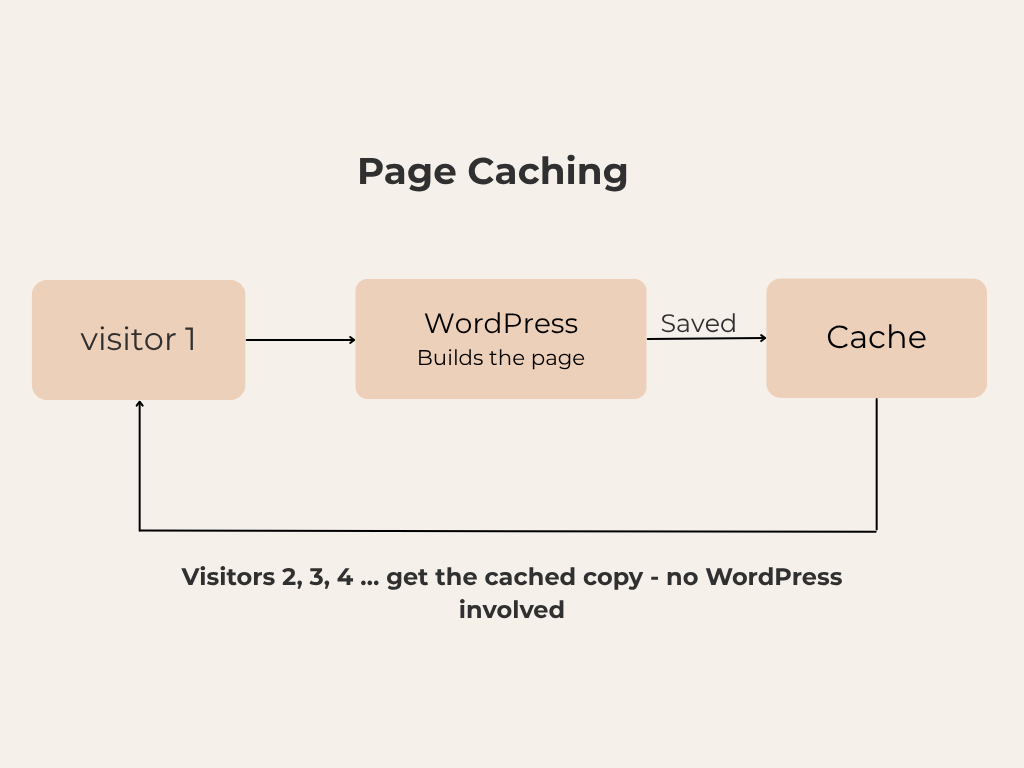
Page caching is the most impactful single caching layer for most WordPress sites. When a visitor first loads a page, WordPress does its usual work – queries, PHP execution, template rendering. Page caching captures that finished HTML and saves it, either to disk or in memory. Every visitor after that receives the pre-built file directly, without touching the database or running a line of PHP.
The performance gain is significant. Time to First Byte (TTFB) drops dramatically because the server is no longer assembling a response, it’s just handing one over.
- Visitor A arrives. WordPress runs PHP, queries the database, builds the HTML, and delivers the page. The caching plugin captures that finished output.
- The snapshot is stored. The complete HTML is saved as a static file on disk or in memory – ready to be served instantly.
- Visitor B arrives. The server hands them the static file directly. No PHP. No database. No WordPress core involved at all.
Where Page Caching Breaks Down
Page caching doesn’t work for user-specific, dynamic pages – WooCommerce cart pages, account dashboards, checkout flows. A cached cart page could show one user’s items to another. Good caching plugins exclude these pages automatically; confirm yours does before going live on a store.
Object Caching: The Database Buffer
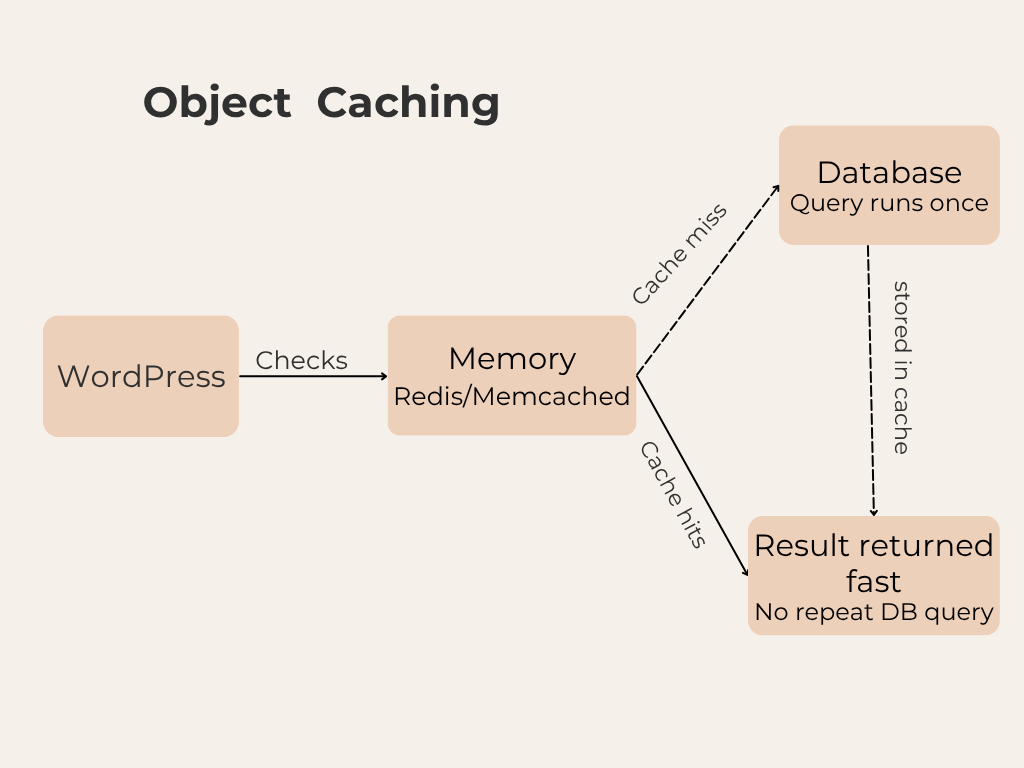
WordPress includes a built-in object cache, but by default it is non-persistent. Cached data exists only for the duration of a single page request and is cleared afterward. While this prevents repeated database queries during a page load, it provides no benefit for future visitors.
Persistent object caching extends this functionality by storing frequently accessed data in memory across multiple requests. Tools like Redis and Memcached act as an external cache layer, keeping database query results readily available so WordPress can retrieve them without repeatedly querying the database.
For example, if a plugin requests your site’s theme settings, WordPress normally fetches that data from the database. With persistent object caching, the result is stored in memory after the first request and reused on subsequent requests. The database is only queried again when the data changes.
This layer is especially valuable for websites that cannot rely solely on full-page caching, such as WooCommerce stores, membership sites, forums, and other platforms that serve personalized content. Because each visitor may see different content, database queries can quickly become a performance bottleneck.
By reducing repetitive database requests, persistent object caching lowers server load, improves response times, and helps dynamic WordPress sites remain fast and responsive, even during traffic spikes.
Check Your Host First
Managed WordPress hosts like WP Engine, SiteGround, and Kinsta often configure persistent object caching at the server level. Check your host’s documentation before installing a Redis plugin you may already have it running without knowing it.
CDN Caching: Serving The World From The Edge
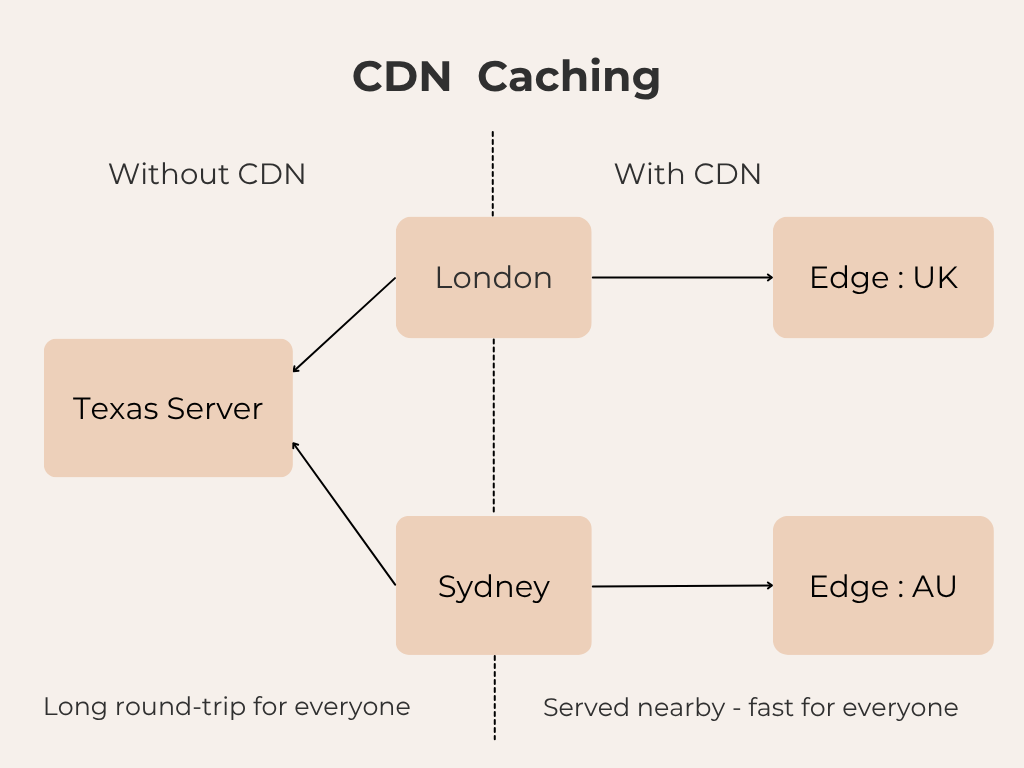
Your web server sits in one physical location. A visitor on the same continent loads your site quickly. A visitor halfway around the world waits while every image, CSS file, and JavaScript asset makes that full round-trip journey. A Content Delivery Network solves this by caching your assets on servers distributed globally. Your London visitor pulls files from a nearby edge node rather than from a server in Texas.
Unlike browser caching, which only benefits returning visitors who already have files stored locally, CDN caching accelerates even first-time visits. It’s the only caching layer that directly addresses the problem of geographic distance, which in practice affects a meaningful portion of almost every site’s audience.
Advanced CDN configurations go further. Cloudflare’s Automatic Platform Optimization (APO) caches the entire HTML page at the edge network, eliminating the round-trip to your origin server entirely for most requests effectively combining the benefits of page caching with the reach of a global CDN.
The Variable Most Guides Skip: Your Hosting Environment
Most caching plugin guides recommend the same two or three options regardless of context. This is where they go wrong. The right caching plugin depends on your hosting environment and using the wrong one can actively conflict with server-level caching your host is already running, producing cache collisions, stale content, and unpredictable results.
LiteSpeed hosting (Hostinger, A2 Hosting) : LiteSpeed Cache is the unambiguous choice. It communicates directly with the server’s own caching layer in a way no third-party plugin can replicate. On LiteSpeed hosting, any other caching plugin is a workaround, it can’t tap into the native caching engine and may introduce conflicts with it.
Cloudways and server-agnostic managed hosts : FlyingPress is purpose-built for this environment. It handles caching cleanly, integrates well with Cloudflare, and is configured correctly without requiring deep technical knowledge, while still giving enough depth for demanding sites.
Complex or high-traffic sites (Premium) : WP Rocket is the most mature and widely compatible caching plugin available. Its compatibility range across hosts, themes, and plugins makes it reliable across diverse environments and its configuration interface gives granular control without becoming overwhelming.
Quick Reference: The Three Caching Layers
| Caching type | What it stores | Primary benefit | Best for |
| Page | Complete pre-rendered HTML | Dramatically lowers TTFB | Blogs, portfolios, static pages |
| Object | Database query results | Reduces server CPU and DB strain | WooCommerce, membership sites |
| CDN | Images, CSS, JS, edge HTML | Speeds up global visitors | All sites with any audience |
Before You Install Anything: Audit Your Caching First
If your site already has caching plugins installed and performance is still poor, the answer is rarely to add another one. The most common problem is too many caching plugins, poorly configured, conflicting with each other, a page cache layered on top of another page cache, or a CDN integration that duplicates what the hosting environment is already doing at the server level.
- Are two or more plugins handling the same caching function – page caching, object caching, or HTML minification?
- Is your caching plugin matched to your hosting environment, or just the most popular option when the site was first set up?
- Is page caching correctly excluding dynamic pages like cart, checkout, and account areas?
- Is your CDN integration actually serving cached assets, or configured but inactive?
- Does your host already provide persistent object caching at the server level, making a Redis plugin redundant?
A Common and Costly Mistake
Misconfigured caching is one of the most frequent causes of visual glitches, stale content, and checkout failures on WooCommerce sites. More caching plugins do not mean better caching. In most cases, they introduce conflicts that make things slower or broken.
Bottom Line
WordPress caching is most effective when it’s treated as a deliberate, layered system rather than an afterthought. Page caching handles your static content and eliminates unnecessary server work. Object caching buffers your database and keeps dynamic sites responsive under load. CDN caching extends your reach globally so distance stops being a performance penalty. Getting all three right and matched to your specific hosting environment is what a genuinely fast WordPress site is built on.

Leave a Reply
Articles
Related Insights.
Blogs and Resources on WordPress, WooCommerce, SEO and Marketing
Leave a
Comment.