
WP All Import Review: Does It Work for Any WordPress Import?
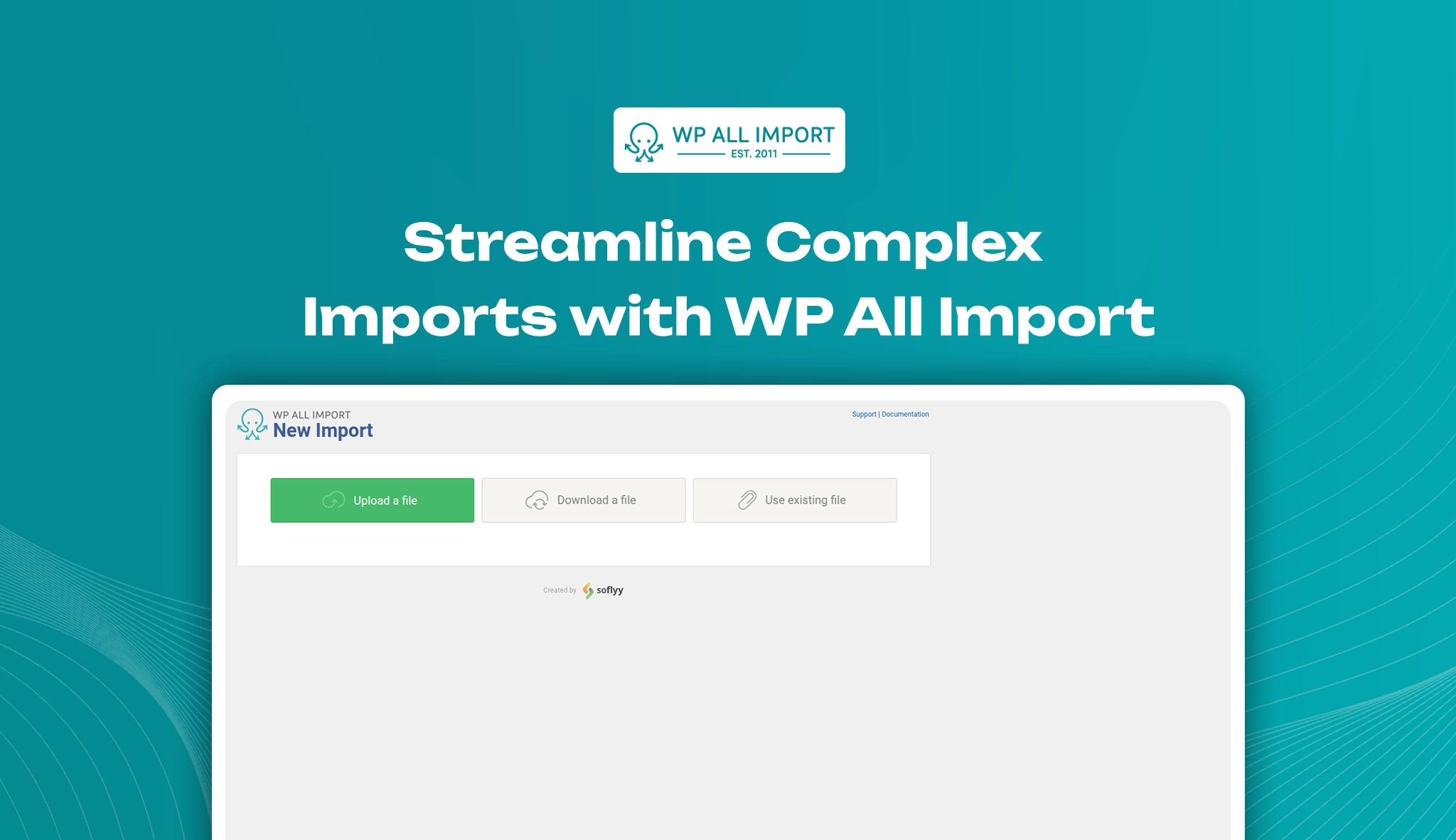
Managing a WordPress site often means handling vast amounts of data—be it products, posts, users, or custom fields. Without the right tools, this task can quickly turn into a time-consuming challenge. That’s where WP All Import steps in as a game-changer. This powerful and highly flexible plugin takes the complexity out of importing data into WordPress from XML or CSV files. Whether you’re migrating content, updating WooCommerce product listings, or syncing external data sources, WP All Import offers unmatched control, precision, and ease. With its intuitive drag-and-drop interface and advanced customization options, it transforms what used to be a tedious process into a smooth, efficient workflow, saving you hours of manual work.
Plugin Compatibility & Performance Stats
- Plugin Name: WP All Import
- Category: Data Management / Import-Export Tools
- Compatibility: WP All Import has been successfully tested up to WordPress version 6.7.2 and seamlessly functions with version 5.0 and requires PHP 7.4 or above for proper functionality.
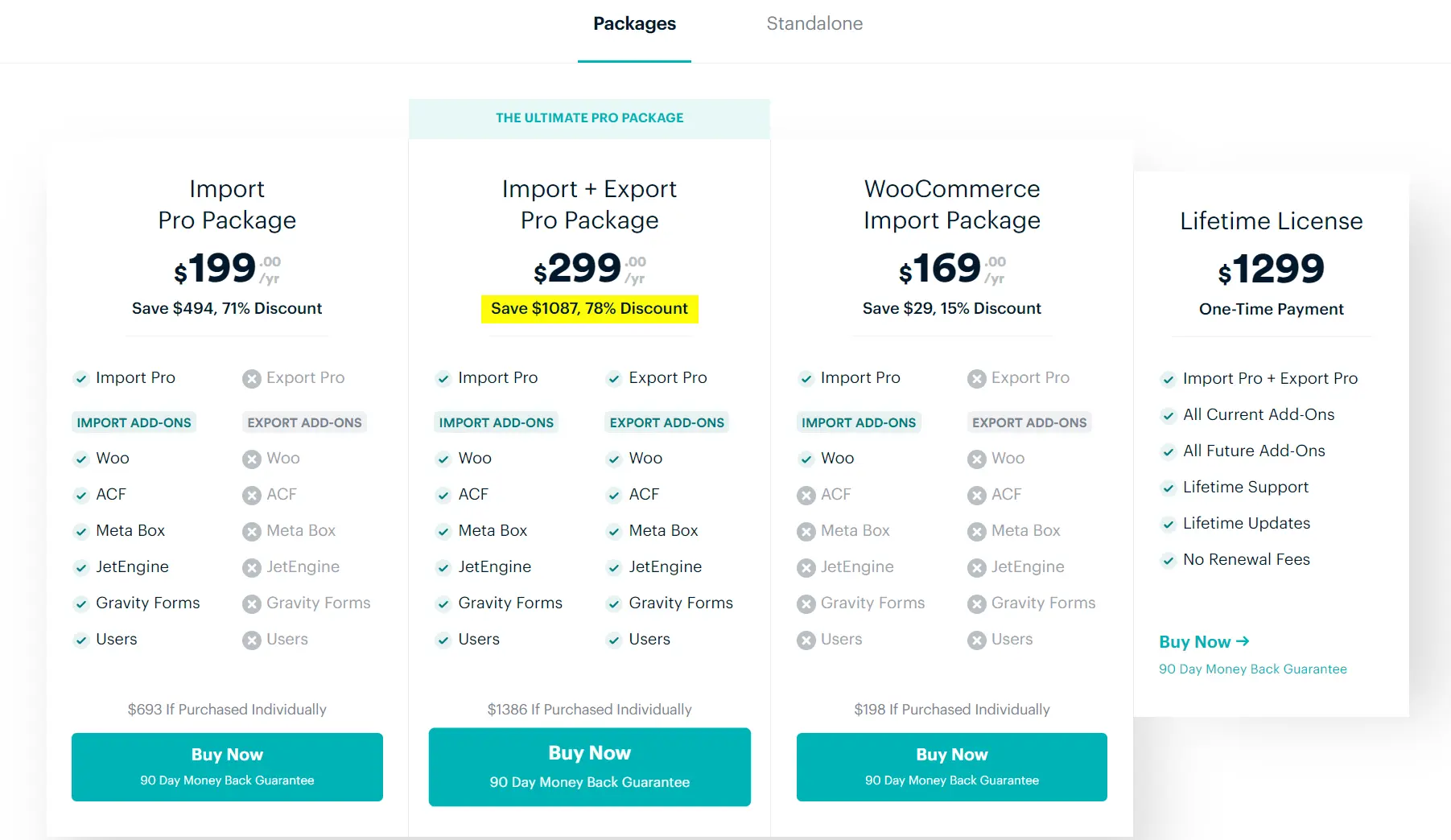
- Pricing: Both premium and free versions are available. Packages begin at $199 per year, while the standalone option is priced at $99 per year.
- Active installations: More than 200,000
- User Ratings & Reviews: WP All Import is trusted by thousands of users and has more than 1,500 five-star ratings, indicating its strong performance and capabilities.
Overview of Dashboard

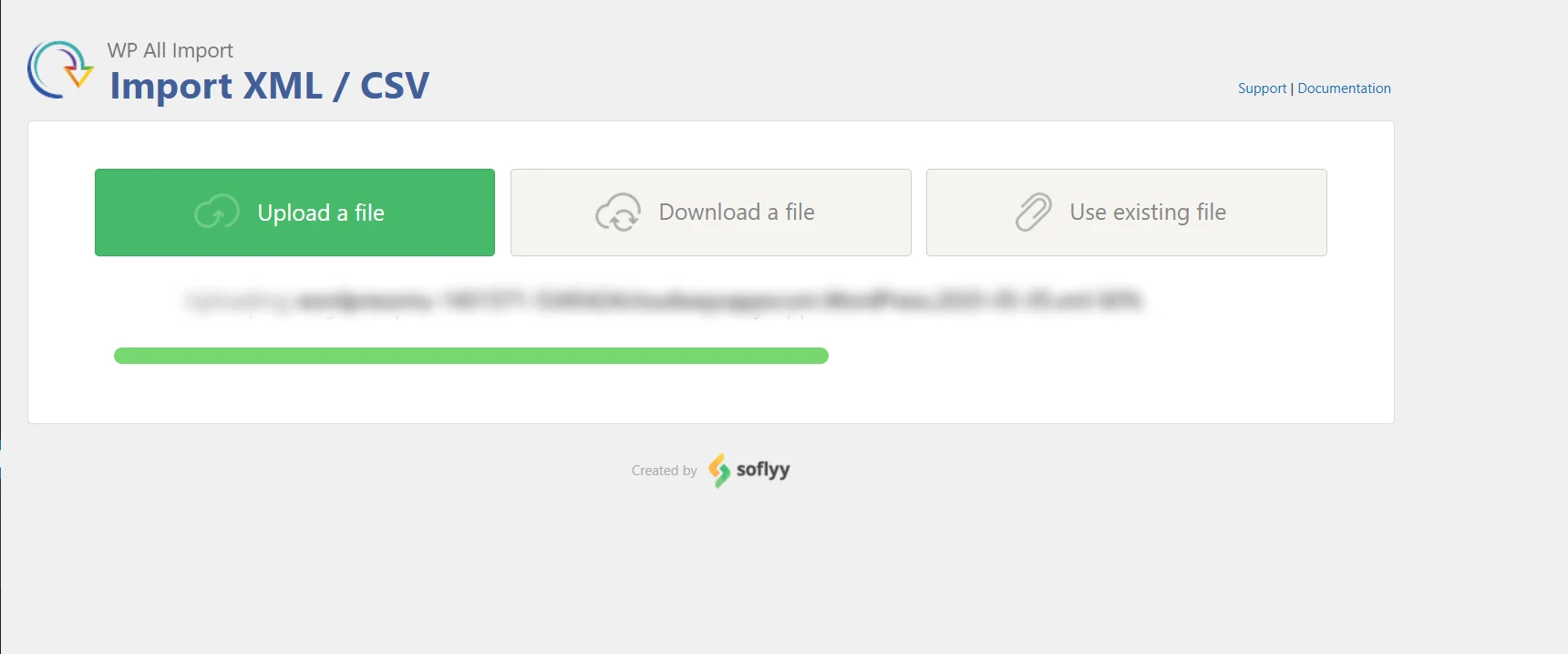
The plugin dashboard features a clean and user-friendly interface designed to simplify the import process. When starting a new import, users can choose from three straightforward options: Upload a file, Download a file, or Use an existing file. Each option is clearly labeled, guiding users through the first step of importing data from XML or CSV formats. The minimal layout ensures ease of use and keeps distractions to a minimum, making it ideal for both beginners and experienced users alike.
1. Upload File
WP All Import streamlines XML and CSV file uploads through its simple interface. Using a straightforward drag-and-drop interface where you can upload files directly from your computer. This feature is most suitable for site owners or developers who prefer to import product, post, or user data in bulk without relying on outside sources. It’s the first step in starting a new import and ensures quick setup for custom data handling.
2. Download a File
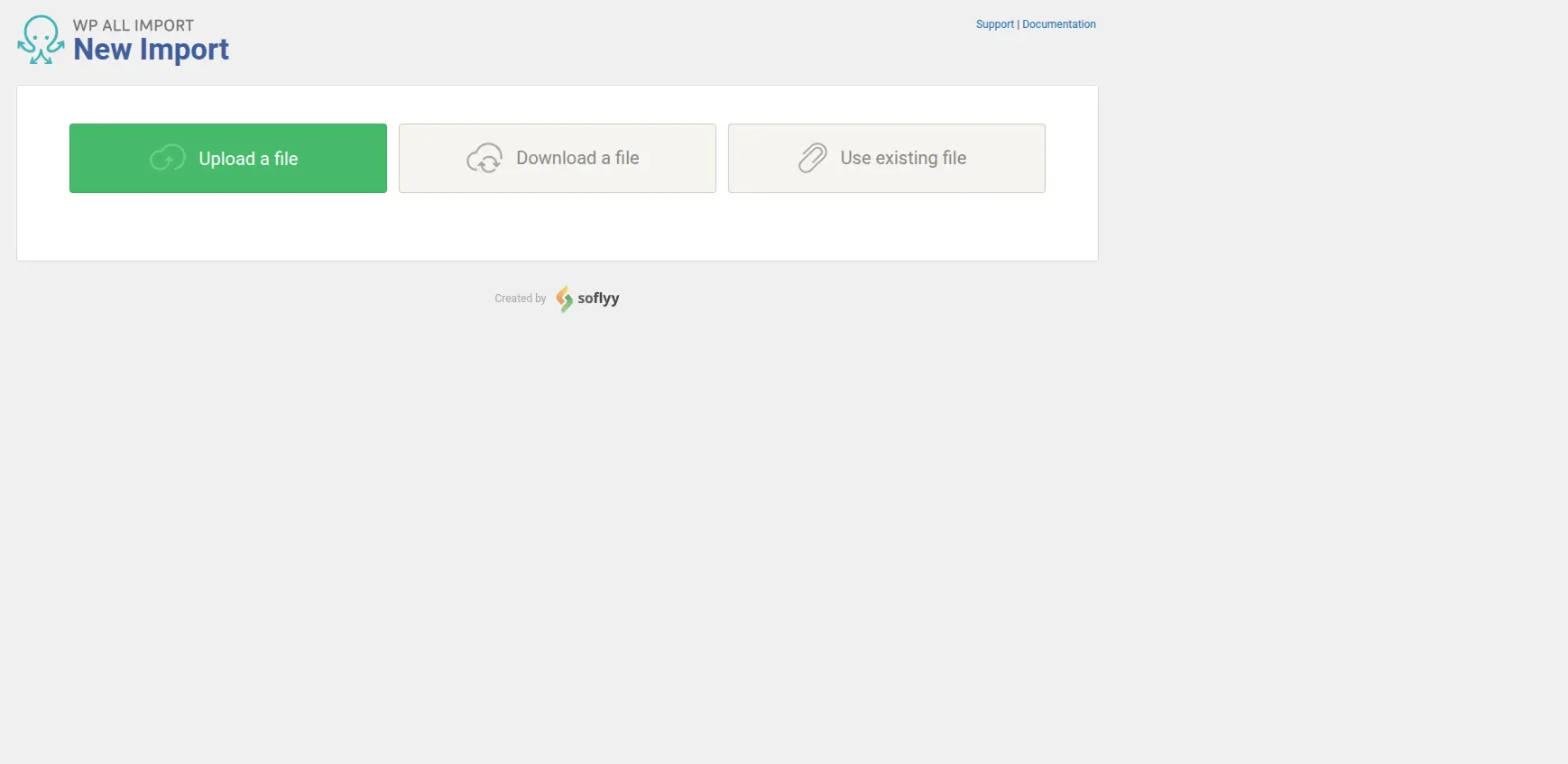
The “Download file” option in the dashboard enables users to import data by directly downloading CSV or XML files from various sources. After selection, two options will appear: From URL and FTP/SFTP. This feature is helpful when importing dynamic or frequently updated data from distant servers or cloud sources. For example, you can set up a feed URL or connect to an FTP server where data is stored, making it easier to automate imports without manually uploading files each time.
3. Use Existing File
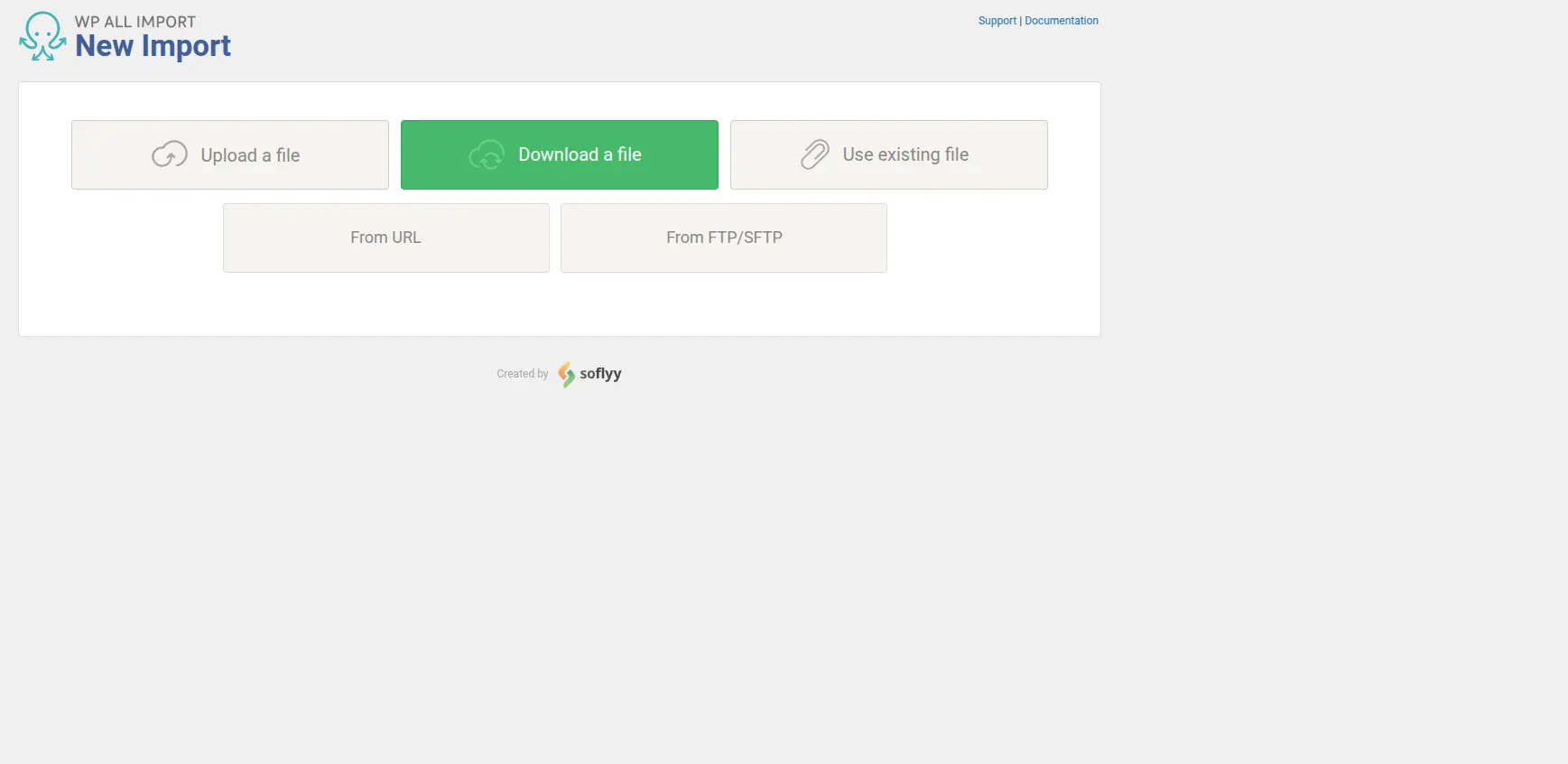
The “Use Existing File” feature enables users to select a previously uploaded file to the website. This is useful when you need to reimport data or run multiple imports using the same file without uploading it again. A drop-down menu displays all the files available on your computer (in the default import folder). It’s a time-saving solution as it avoids repetitive tasks or testing various import settings on the same file.
File Import Process in WP All Import
1. Uploading Your File to Start the Import
WP All Imports’ simple interface makes uploading XML or CSV files easier. The import process begins as soon as you click “Upload a file,” and bulk data management is made simpler and more effective with a visible progress indicator that allows users to monitor the upload status in real time.
2. Choosing Content Type and Import Options
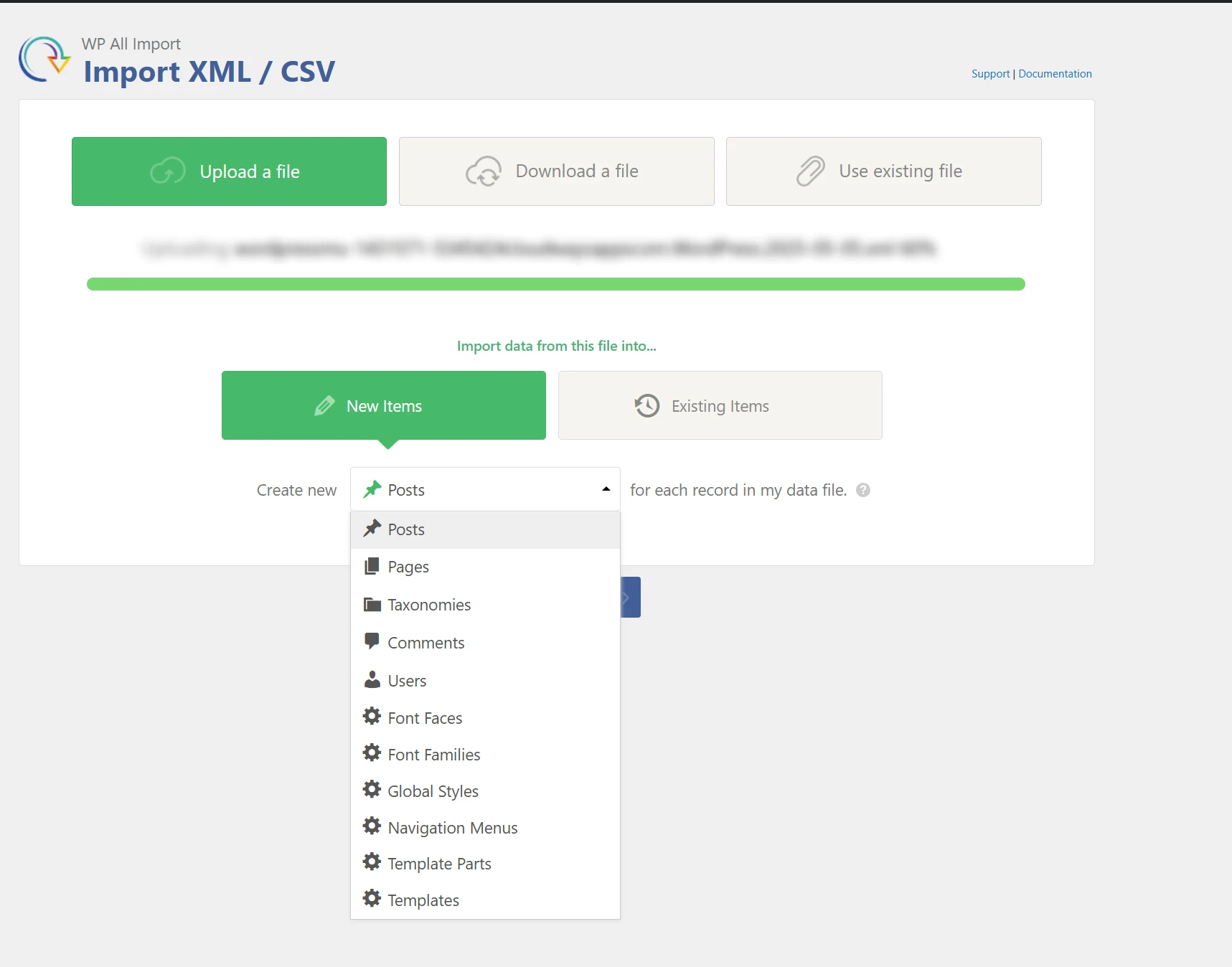
WP All Import offers two essential options: New items and Existing items after the file is uploaded, allowing users to either add new content or edit already existing entries. A clear dropdown menu then allows you to choose the type of content you want to import, including posts, pages, users, taxonomies, and more. This capacity for adaptation guarantees that large data can be precisely managed and organized within your WordPress website.
3. Data Preview Before Import
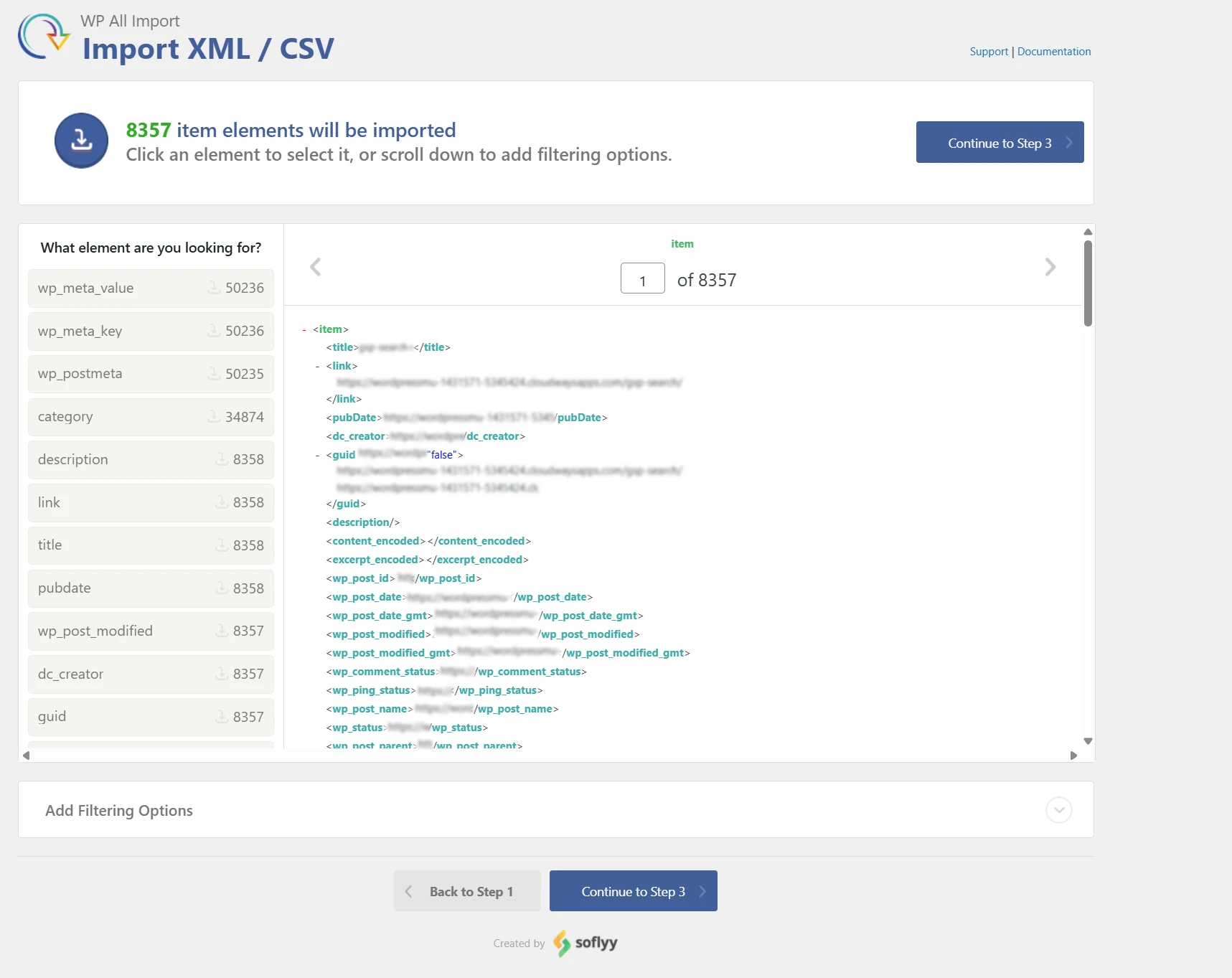
At this stage, WP All Import generates a preview of the elements detected in the uploaded XML or CSV file. This step allows you to review the data structure, check for any formatting issues, and confirm that all required fields are correctly recognized before moving forward with the import process.
4. WP All Import Content Mapping
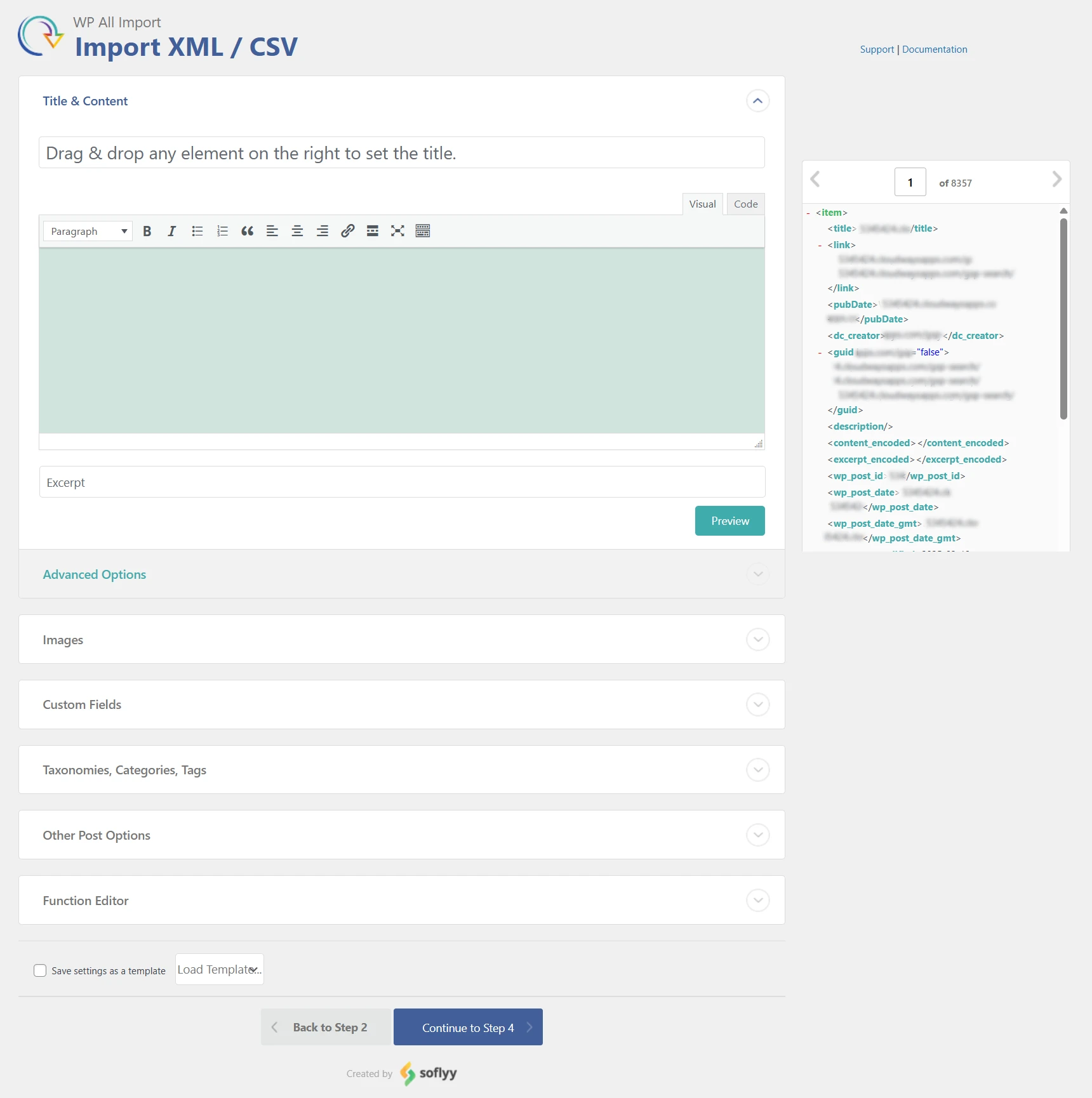
The content mapping stage allows users to drag and drop elements from the uploaded XML or CSV files into the appropriate WordPress fields, such as title, content, and excerpt. The user-friendly interface includes expandable sections for advanced options, images, custom fields, taxonomies, and more, offering proper control over how each piece of data is to be handled. This setup guarantees a flexible and easy-to-use method for mapping and getting big datasets ready for import.
5. Configuring Unique Identifiers and Update Settings
In this process, users can specify how imported records are matched and altered within WordPress. A unique identification is set with an auto-detect option to guarantee every imported item is properly connected and avoids duplication. The interface offers users exact control over how new and current data are handled during the import process by letting them choose whether to add new posts, edit old ones, or remove entries that are missing.

6. Final Confirmation Before Import
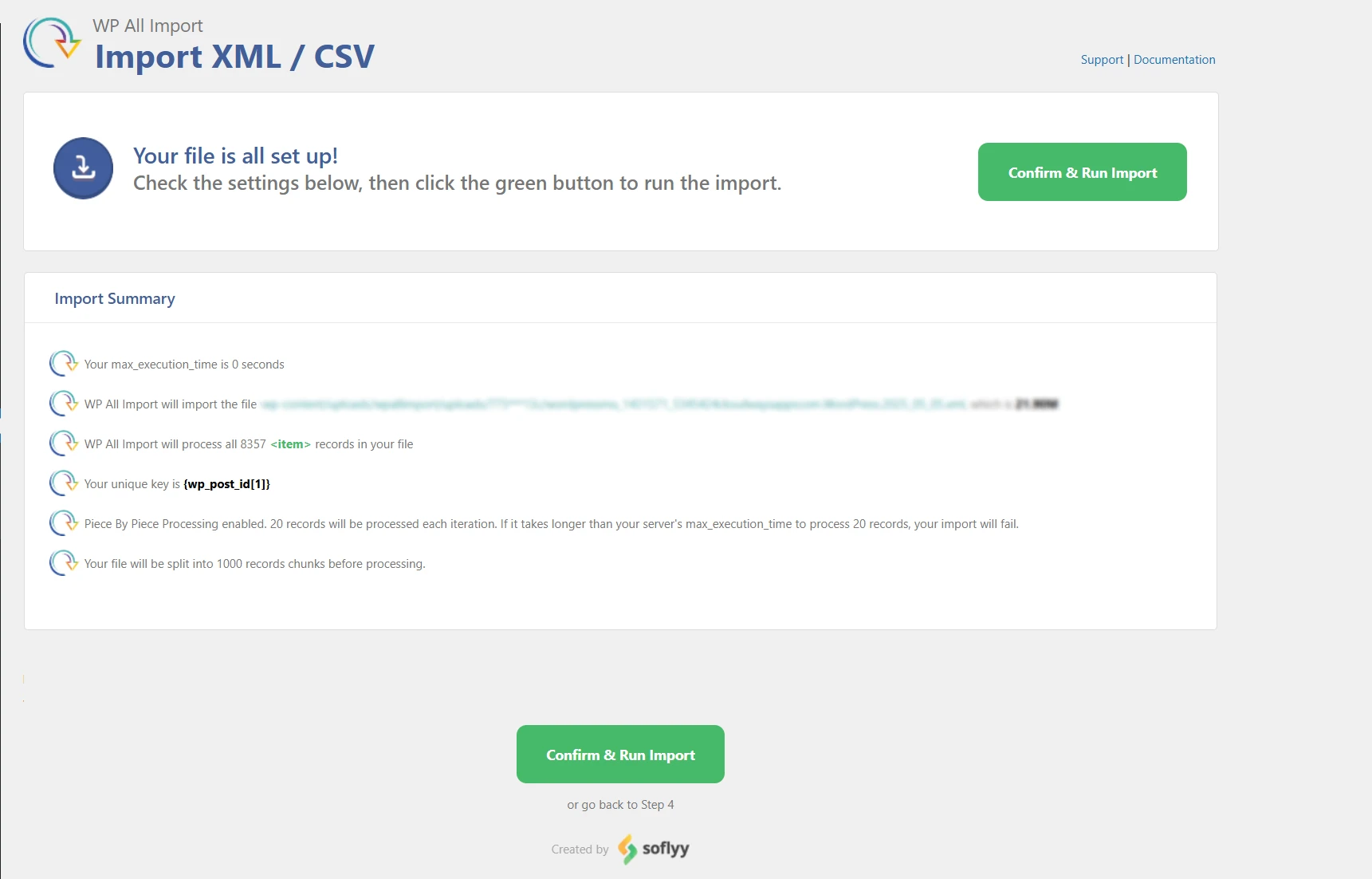
Before proceeding with the import, the plugin displays a summary screen that highlights key details of the process. This includes the total number of records to be imported, the unique key used to match data, and the chunking method applied for efficient processing. This final check confirms that all settings are properly configured before starting the import.
7. Import Completion Summary
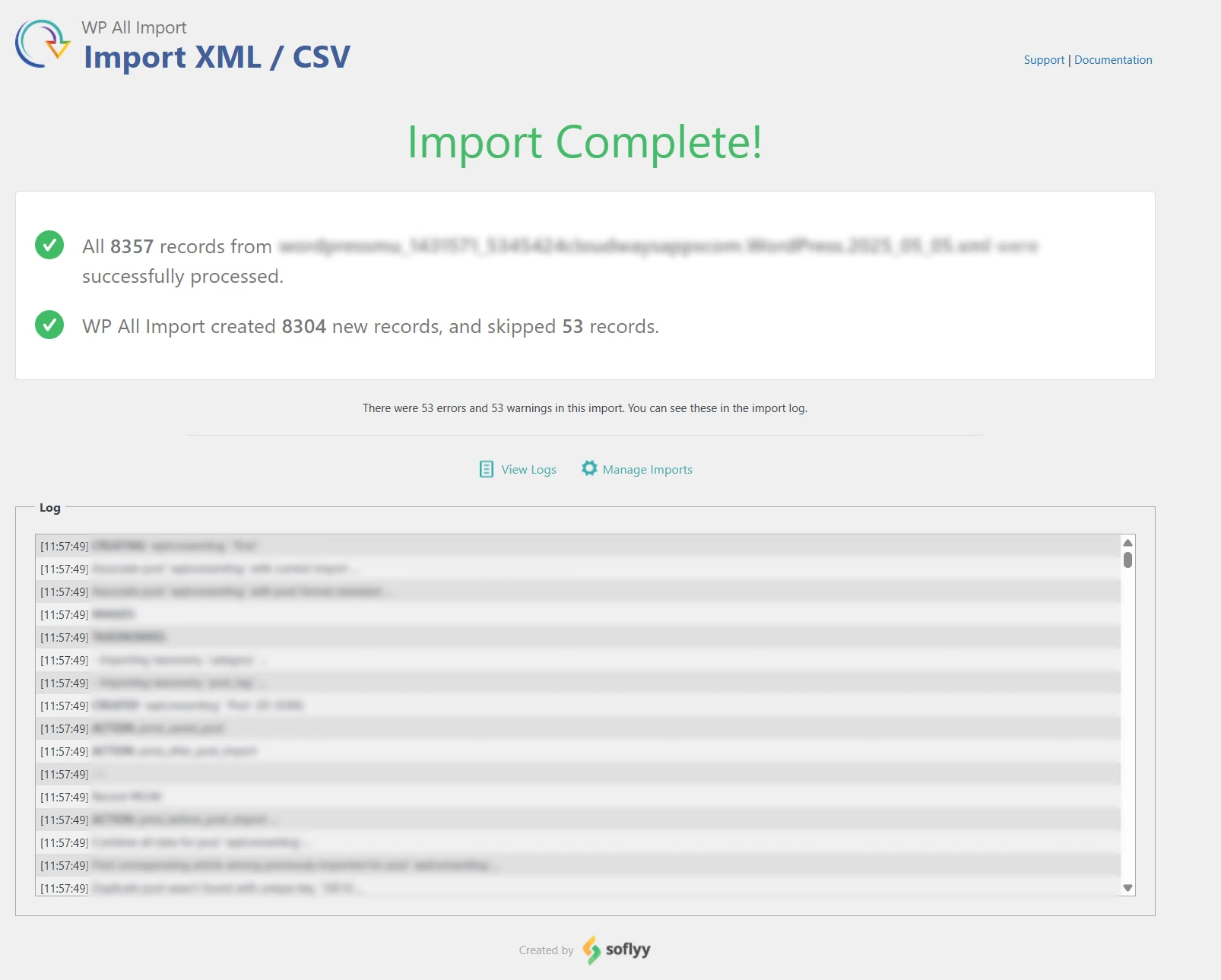
The final “Import Complete” screen confirms that all records from the XML file have been processed. It indicates the records that were imported, skipped, or added as new entries. The accompanying import log provides instant feedback and helps troubleshoot any issues encountered during the process.
WP All Import Settings Overview
WP All Import provides a centralized settings panel that allows users to fine-tune every aspect of the import process. From managing license keys and uploading templates to configuring cron jobs, the plugin offers full control for seamless automation. You can enable advanced features like Automatic Scheduling, protect cron jobs using a Secret Key, and optimize performance with options like Cron Processing Time Limit and Cron Sleep. Secure Mode enhances safety by storing import files and logs in randomly named directories. Additional options let you clean up temporary files, limit log retention, and adjust batch sizes with the Chunk Size setting. These settings ensure performance stability, even when handling large data sets.
In the Advanced Settings area, users can customize import behavior further, like setting custom ports with “Add Port to URL,” activating auto-retry for failed imports, or switching to Stream Reader for complex XML files. Key options such as enabling WP_IMPORTING, setting download timeouts, and using the Function Editor for writing custom PHP functions provide developers with deep flexibility. Whether you’re importing WooCommerce products, ACF fields, users, or variable data, WP All Import ensures compatibility, speed, and control. With support for scheduled imports and a user-friendly drag-and-drop interface, it’s built to streamline workflows for both beginners and advanced users.
Important Features to Keep in Mind
- Customizable Imports: Insert data into any theme or plugin field with ease and automatically detects custom field taxonomies, image galleries, location fields, and other elements on your WordPress website.
- Support for Any File Type: Upload any file type, size, and structure, along with the option to import data from spreadsheets, CSV files, and even Google Sheets without rearranging the data. For transferring, just drag and drop data into the appropriate WordPress fields.
- Efficient Large File Handling: Import large files with hundreds of megabytes, even on shared hosting. WP All Import can easily handle large datasets.
- Content Update Capability: Update existing content with new data by importing into current posts, and import WooCommerce, ACF, users, listings, and more. Have full control over which content is updated and which remains unchanged.
- Complete Product and Data Import: Easily import variable products, SEO metadata, repeater fields, custom user meta, image galleries, term meta, and more—WP All Import covers all your import requirements.
- User-Friendly Interface: The user-friendly drag-and-drop interface makes it easy to manage even the most complex imports and exports.
- Scheduled Imports: Set up automatic imports and exports on a schedule, with a simple configuration that works on any hosting environment.
- Developer-Friendly Features: Get access to extensive documentation, support for custom PHP functions, and a robust API for functionality expansion.
Pricing
WP All Import offers flexible licensing options to meet different business needs, starting with a standalone plugin license at $99/year. For users requiring advanced features and pro add-ons, a more comprehensive package is available starting at $199/year.
To view the whole breakdown and select the plan that best suits your project’s needs, go to the official WP All Import pricing page.
Pros and Cons
Pros
- Very flexible import logic
- Handles large files with ease
- Add-on ecosystem for WooCommerce, ACF, and more
- Beginner-friendly UI + developer-friendly extensibility
Cons
- Complex setups might need trial-and-error
- Some add-ons cost extra
Optimization & Performance Overview
- Designed to process large files without timing out
- Imports can be resource-intensive on shared hosting — recommended to use on optimized or managed hosting.
- Scheduled imports are efficient with WP Cron or external cron jobs.
Recommended Use Cases
- eCommerce stores importing product catalogs
- Real estate listing websites
- Membership or directory sites using CPTs
- Publishers importing bulk content from spreadsheets or XML feeds
- Developers managing custom data migrations
Other Recommended Plugins
Import Export Suite for CSV and XML Datafeed: WP Ultimate CSV Importer is a powerful tool that enables users to easily import content, custom fields, categories, tags, and more from CSV files into WordPress and handle large volumes of data.
Product CSV Import Suite (WooCommerce): The CSV Import Suite plugin by WooCommerce is specifically designed for importing and managing product data, offering advanced features to handle various product types, including simple, variable, and grouped products
Import WP – Export and Import CSV and XML files to WordPress: JC Importer is a lightweight plugin designed for simple CSV file imports into WordPress, making it easy to bulk import posts, pages, and custom post types. It provides a streamlined solution for users who need a no-frills, straightforward import tool for small to medium-sized websites.
Summary & Final Verdict
WP All Import isn’t just another WordPress plugin — it’s a powerful solution built for users who demand more control and efficiency.
From custom post types and WooCommerce products to complex field mappings, this plugin offers unmatched flexibility. Its intuitive drag-and-drop interface makes even the most advanced imports simple and manageable.
Whether you’re running a content-heavy site or managing a large eCommerce store, WP All Import can dramatically streamline your workflow, saving time, minimizing errors, and making data management effortless.
Download Now & Discover More Details
To see how WP All Import can simplify your WordPress data imports and enhance your site’s functionality, head over to the official plugin page.

Leave a Reply
Articles
Related Insights.
Blogs and Resources on WordPress, WooCommerce, SEO and Marketing

Leave a
Comment.