
Parallax
Contents
Post Grid Layouts

Post Filter
- Hide Main Title Selection
- Hide Link
- Link Title
- Post Type Selection
- Taxonomy Selection
- Multiple Term Selection
- Background Color
- Choose Background Image
- Padding & Margin
- Heading Settings
- Excerpt Settings
- Author & Date Settings
- Active Term Styling
- Regular Term Styling
- Post Styling
- Hover Effect
- Actions
- Advanced
Post Ticker

Slider
URL Snippet
Parallax
Midnay Patterns
The Parallax Block adds a scrolling effect that moves elements at different speeds, creating a parallax effect that adds depth and enhances visual engagement.
Step 1:
Add Parallax block on edit page.
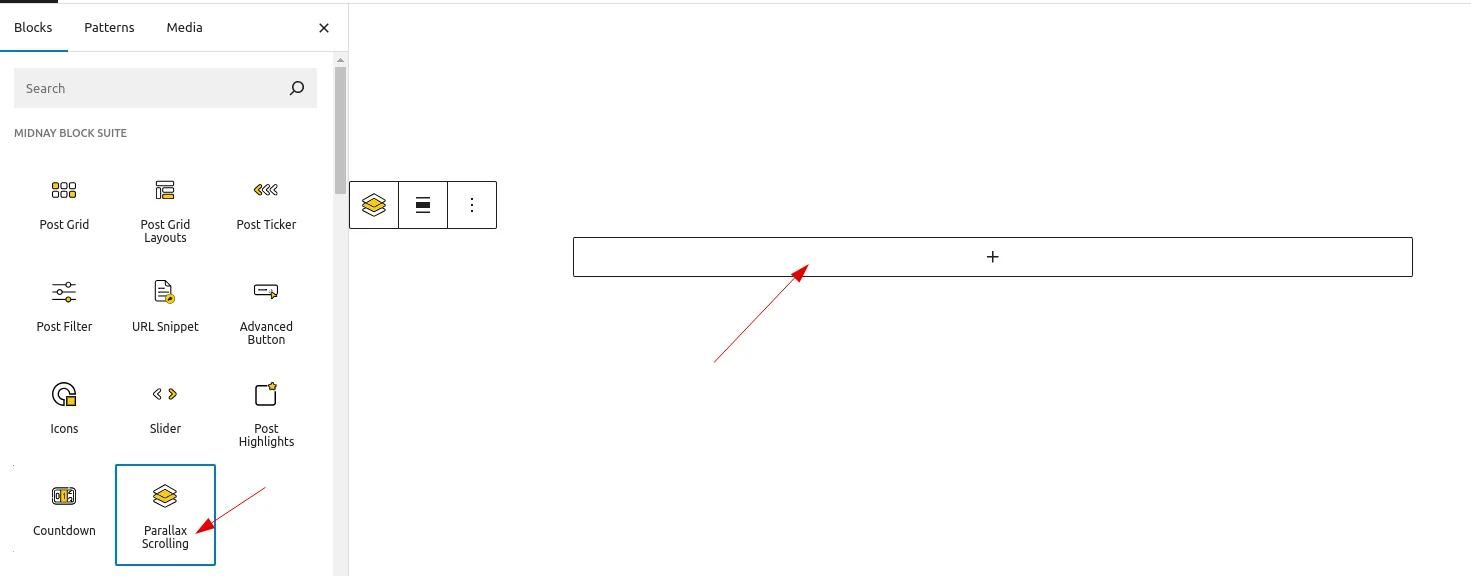
Step 2:
Click the Add (+) button to insert a new item. You can select a single group, row, column, or other layout element depending on your design. After selecting, you can add any content you want inside it. When using a single parallax item, it is treated as a parallax item within your layout.
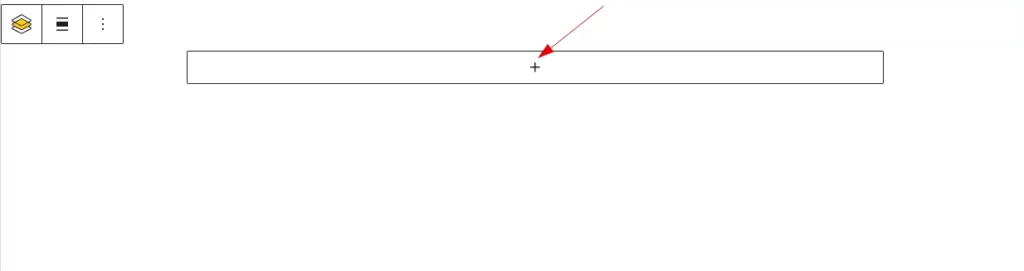
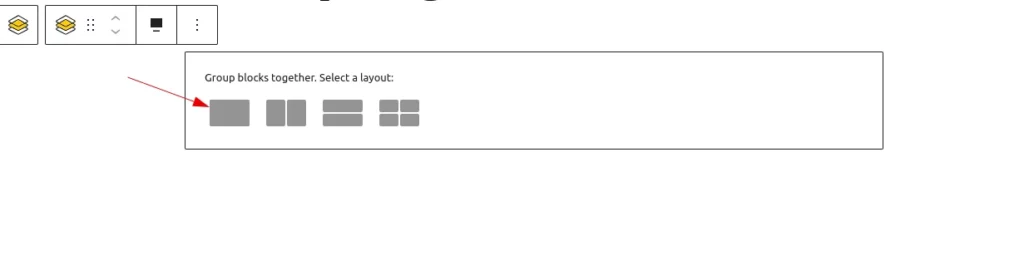
you can add any content you want inside it.
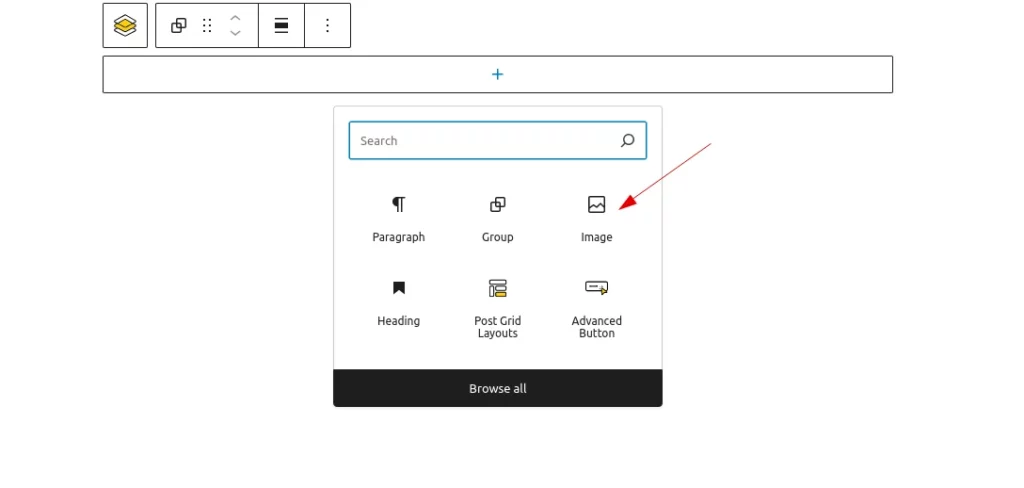
Step 3 :
Add another single parallax section. You can also duplicate an existing single parallax and simply update the content as needed.
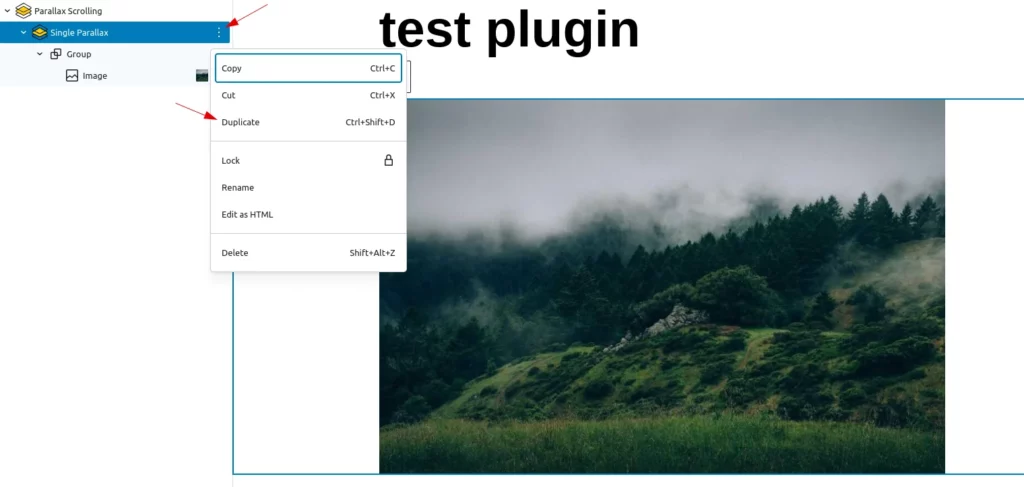
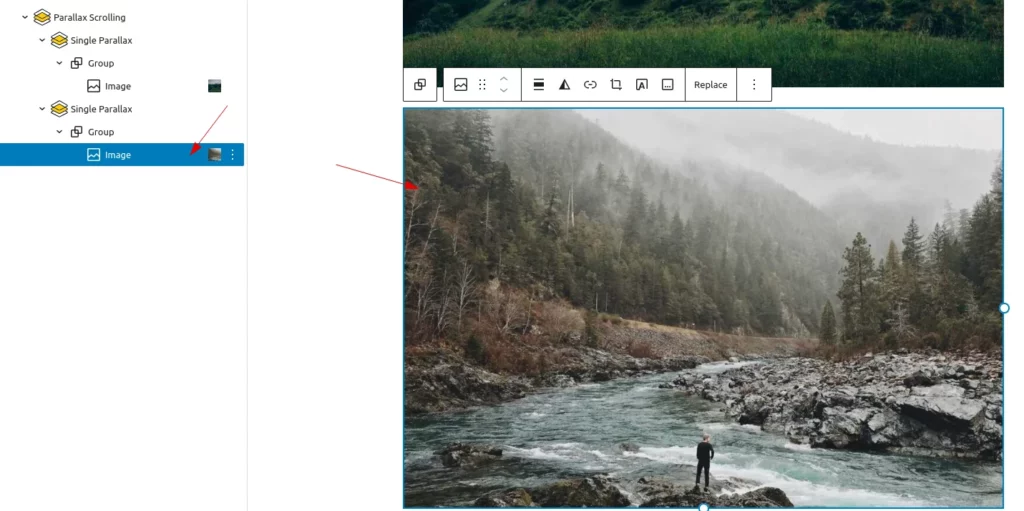
Then, update the page to see the parallax animation on the front end.
Note: At least two single parallax sections are required for the parallax animation to appear.