
Slider
Contents
Post Grid Layouts

Post Filter
- Hide Main Title Selection
- Hide Link
- Link Title
- Post Type Selection
- Taxonomy Selection
- Multiple Term Selection
- Background Color
- Choose Background Image
- Padding & Margin
- Heading Settings
- Excerpt Settings
- Author & Date Settings
- Active Term Styling
- Regular Term Styling
- Post Styling
- Hover Effect
- Actions
- Advanced
Post Ticker

Slider
URL Snippet
Parallax
Midnay Patterns
The Slider Block allows users to create an interactive sliding component to display multiple images, text, or other content in a scrollable format. It enhances user engagement by enabling smooth navigation through various slides.
Step 1:
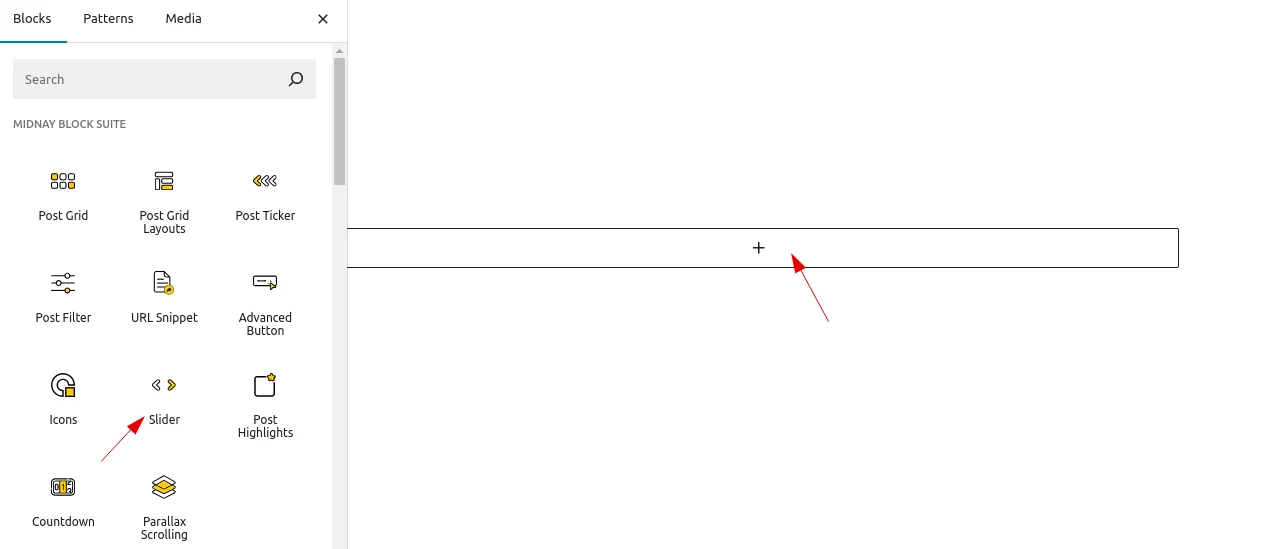
Add the slider block on the edit page.
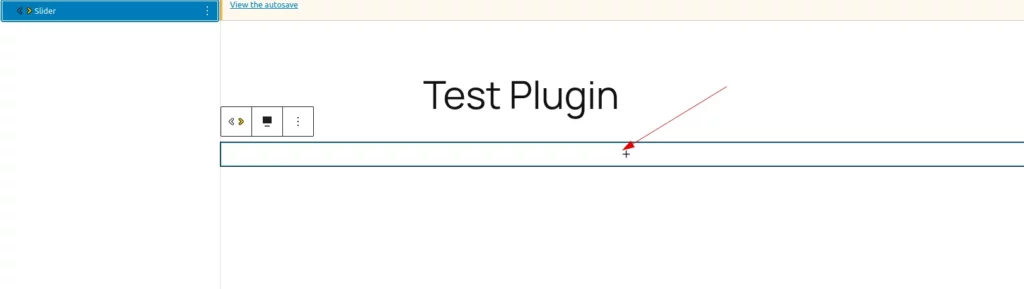
Like this block will display. Users can add custom class names and style them according to their needs, just like in other blocks.
Step 2:
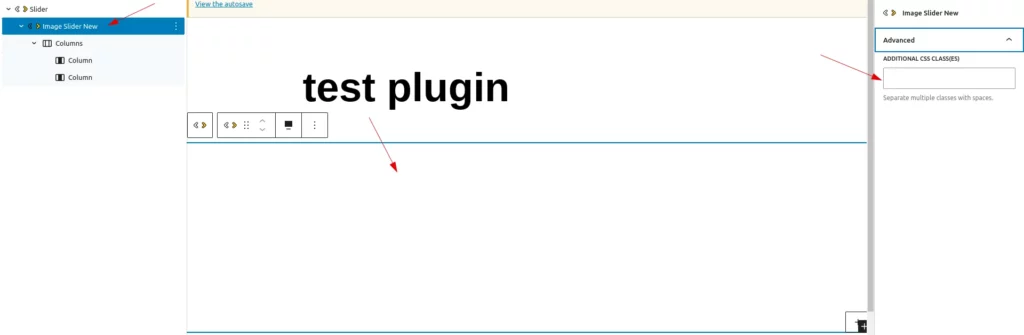
When clicking on the initial block, another block named “Image Slider New” will be added. This block includes a wrapper column with two columns inside. Adding multiple “Image Slider New” blocks will create multiple slides. Users can assign custom class names and style them as needed, just like with other blocks.
Step 3:
Users can also add multiple columns from the default WordPress options inside this block.
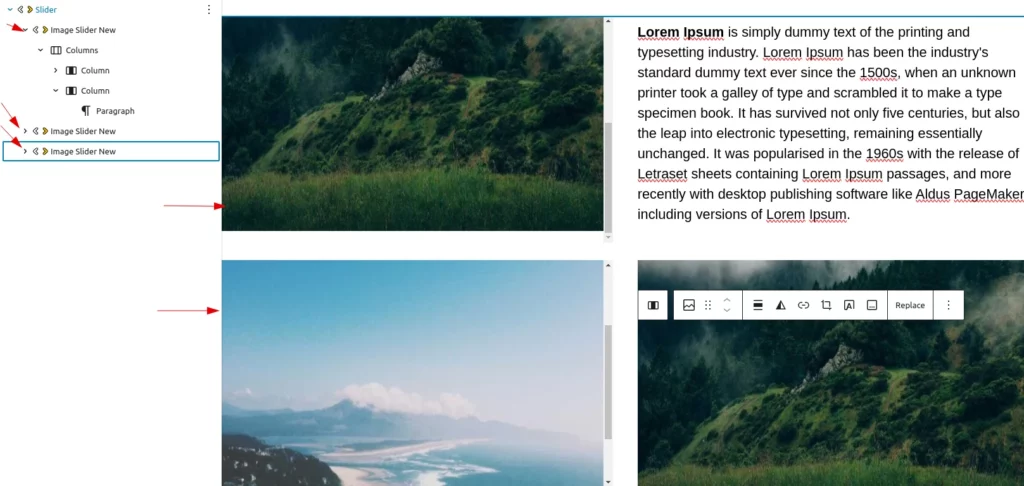
Inside the block, users can add any other block from Gutenberg.
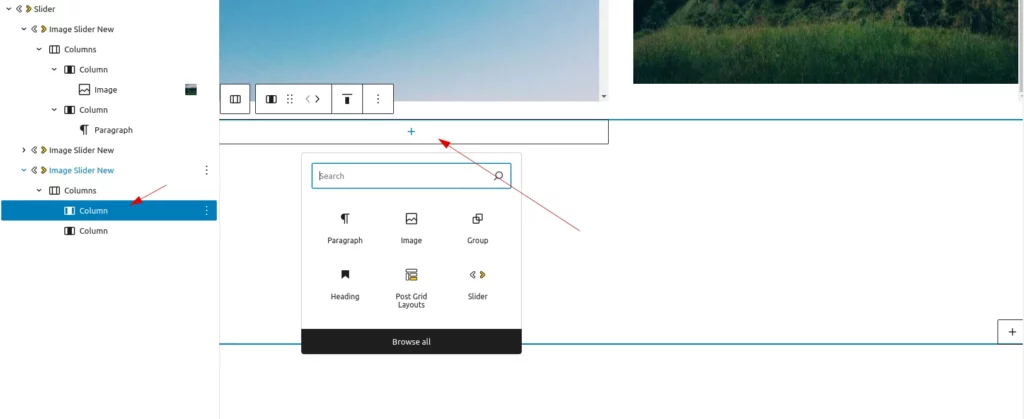
Step 4:
Frontend:
Click the slide buttons to navigate through the slides. Users can also drag to view other slides.